
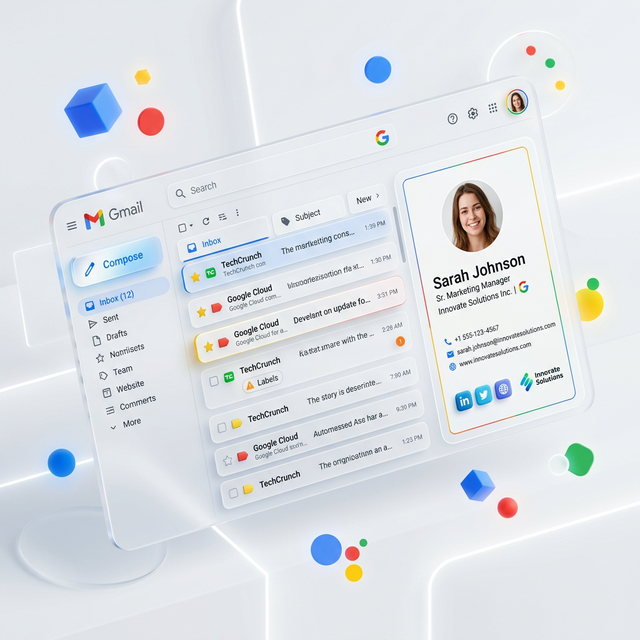
Quick Answer: Adding a Signature in Gmail Android
To add a signature in the Gmail app on Android, follow these 3 rapid steps:
- Open the Gmail app > Tap Menu (top-left) > Settings.
- Select the specific email account you want to configure.
- Tap Mobile Signature, enter your text, and tap OK.
Settings Navigation in Gmail Android
To start, you need to navigate past your labels and folders. Tap the three-line icon (hamburger menu) in the top-left corner and scroll all the way to the bottom to find the general Settings option.
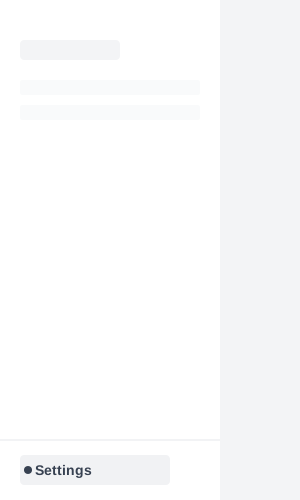
*Caption: Open Gmail app settings from the primary navigation menu.*
Step-by-Step: Mobile Gmail Signature Setup
Step 1: Select Your Account
In the Settings screen, you will see a list of every Gmail or Google Workspace account logged into your device. Tap the business account you want to set a signature for.
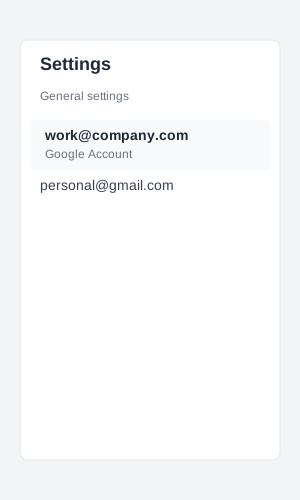
*Caption: Select the specific email account you wish to configure.*
Step 2: Locate Mobile Signature
Scroll down through the account-specific settings. Under the General section, you will find the Mobile Signature field. If it says "Not set," your mobile emails are currently going out without a signature.
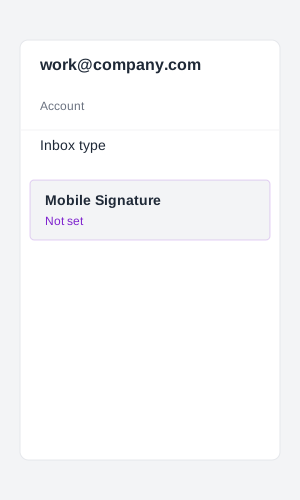
*Caption: Choose the Mobile Signature option to begin editing.*
Step 3: Add Your Text
A popup window will appear. Type your plain-text signature details here. Since HTML isn't supported, avoid pasting raw code.
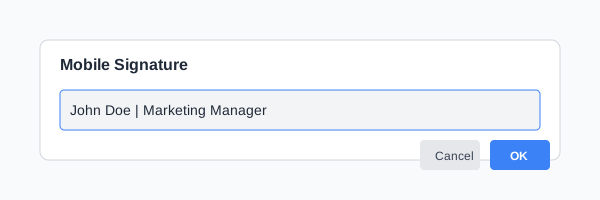
*Caption: Enter your contact details in the mobile input field and tap OK.*
HTML vs. Plain Text Signatures
The biggest mistake users make is expecting their desktop branding (logos, banners, and fonts) to sync to their Android device.
- Desktop HTML: Sophisticated, branded, and visual (supported in browsers).
- Mobile Text: Functional, fast-loading, and limited to standard characters (the only option in the app).
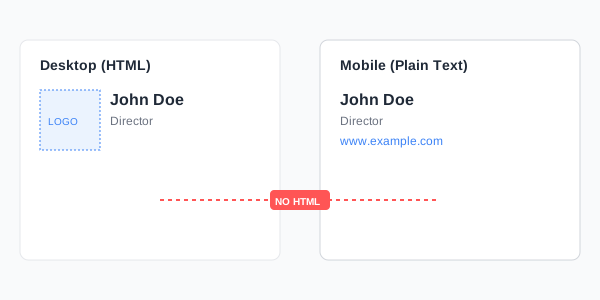
*Caption: Understanding the difference between HTML (Desktop) and Plain Text (Mobile).*
The Best Mobile Signature Format
Because you are limited to text, clarity and white space are your best tools. A vertical stack of info is easier to read on narrow phone screens.
Recommended Format:
Name
Job Title | Company Name
m: +1 555-0123
w: https://inboxsign.io
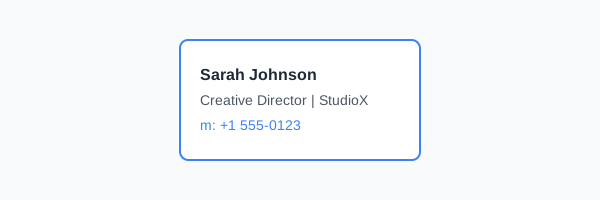
*Caption: A minimal, professional format optimized for small screens.*
[!TIP]
Since Gmail Android doesn’t support HTML signatures, use InboxSign to create a simplified version that still looks professional and aligns with your desktop branding.
Android Auto-Linking: Your "Hidden" Feature
While the app prevents you from creating clickable buttons via HTML, the Android OS automatically scans your signature. It converts phone numbers and URLs into "implied links" that the recipient can tap to dial or browse.
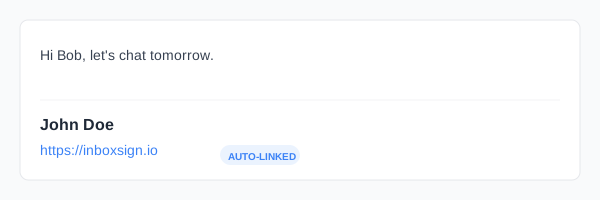
*Caption: Android automatically converts certain text patterns into tappable links.*
When to Use the Web Version
If you are sending a critical sales proposal and require a full HTML signature with a logo, do not use the Gmail app. Instead:
- Open Chrome or another mobile browser.
- Navigate to mail.google.com.
- Request "Desktop Site" in your browser settings.
This allows you to access your full desktop signature, including your Gmail HTML settings.
Troubleshooting: Gmail App Signature Not Working
- Issue 1: Signature Missing: Ensure you have configured the signature for the correct account. If you have three accounts, each needs a separate mobile signature.
- Issue 2: HTML Showing as Code: If you see symbols like
<div>, you tried to paste code. Delete it and replace it with clean, plain text.
- Issue 3: Styling is Gone: Bold, italics, and colors are not possible in the native Android Gmail app signature box.
The Mobile Professional Checklist
- Plain Text Only: Is your signature free from HTML tags?
- HTTPS Links: Are URLs written in full (https://...)?
- Phone Format: Is your phone number in an international format for auto-linking?
- Correct Account: Is the signature set on your work profile, not your personal one?
- Device Tested: Have you sent a test email to your desktop to verify the look?
Professionalize Your Mobile Presence
Mobile emails are the fastest way to stay connected, but they shouldn't compromise your professionalism. Create a mobile-friendly email signature for Gmail that works seamlessly alongside your desktop branding using the InboxSign generator today.
*Technical and system review completed for 2026 Android standards.*