
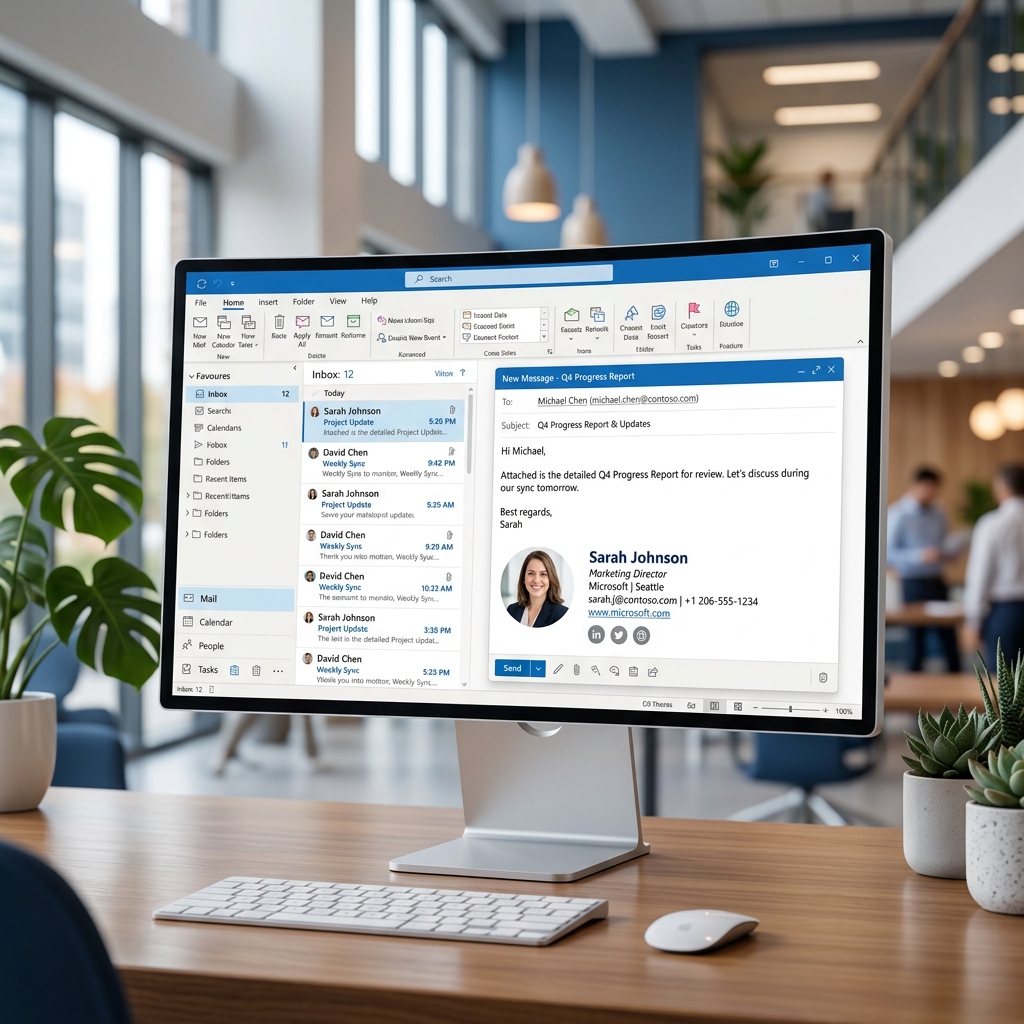
Quick Answer: How to Add a Signature in Outlook Desktop
*Outlook Desktop uses the Microsoft Word engine to render emails, causing most HTML formatting issues.*
Follow these steps to add a signature in Outlook desktop:
- Open Outlook and select File > Options.
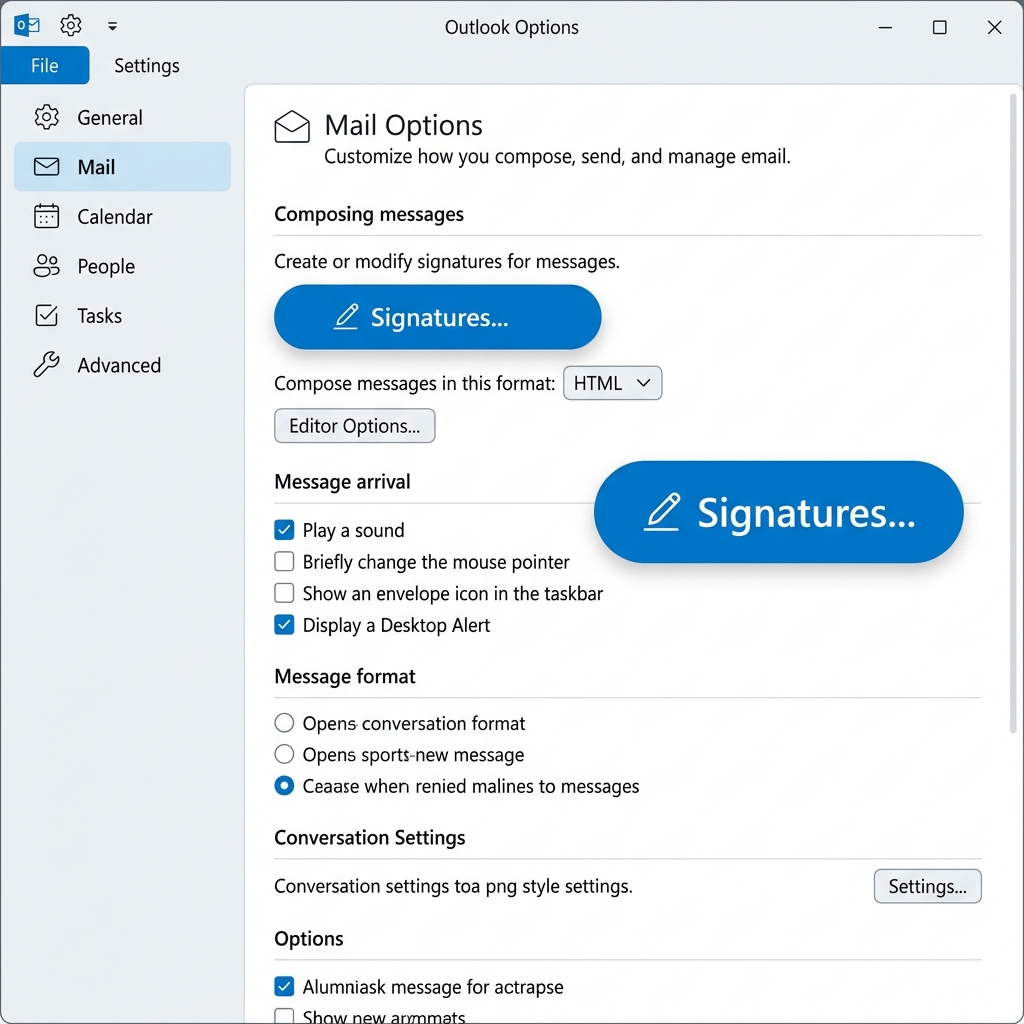
Creating a placeholder for your New Signature
- Important: When pasting, select Keep Source Formatting from the popup icon to preserve your design.
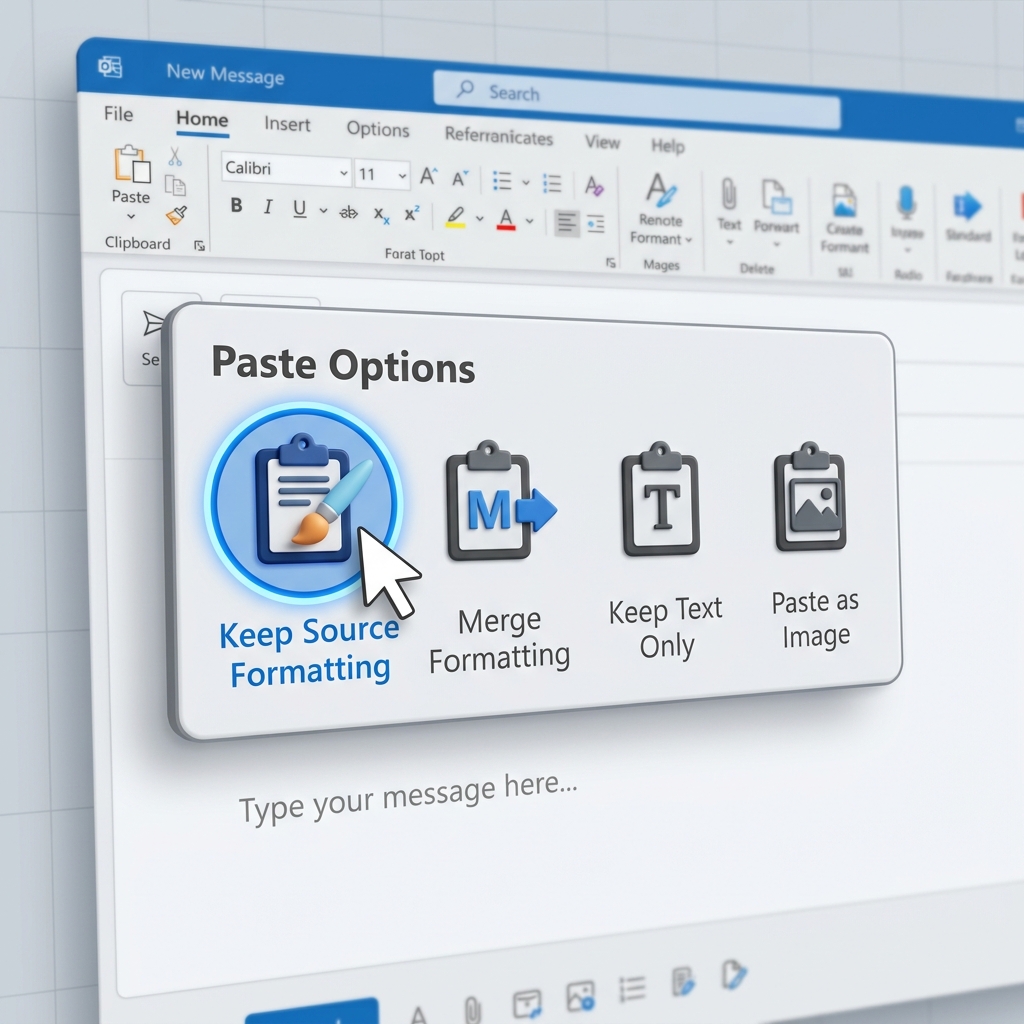
Selecting Keep Source Formatting to preserve layout
- Set defaults for New messages and Replies and click OK.
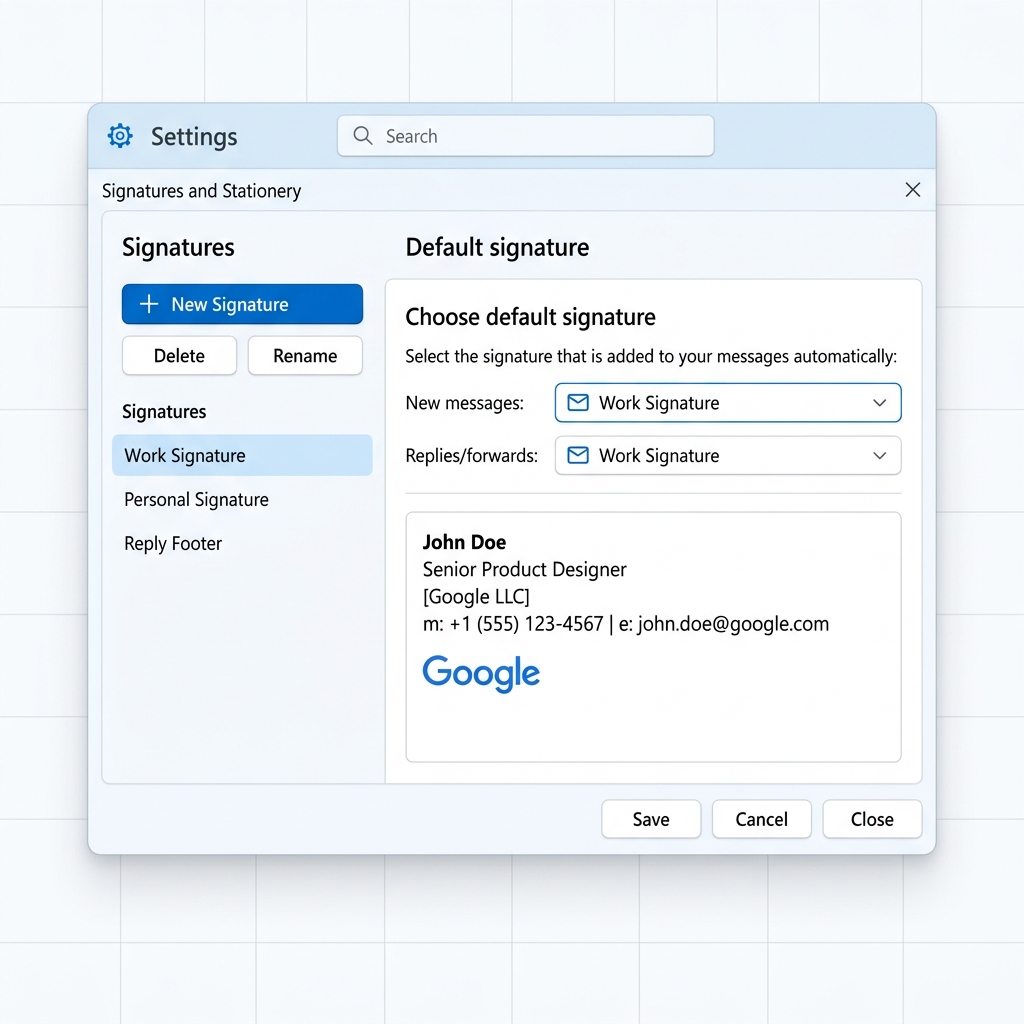
Assigning default signature settings
Before You Start: Preparation Checklist
To avoid 90% of common errors, verify these standards before installing:
- HTML-Based Design: Avoid signatures exported from Word or Google Docs as they contain unnecessary formatting code. Use a professional HTML email signature for stability.
- Hosted Images: Your logo and icons must be hosted on a secure web server (HTTPS). Never drag and drop images directly into the editor.
- Table-Based Structure: If building manually, use a table-based layout instead of modern grid systems.
- Browser Verification: Open your signature file in Chrome or Edge first. If it looks broken there, it will not work in Outlook.
How to Edit or Change Your Signature
If you need to update your contact details or swap your logo, follow these steps to edit an existing signature:
- Go to File > Options > Mail.
- Click the Signatures... button.
- Under "Select signature to edit," click the name of the signature you want to change.
- Make your edits in the "Edit signature" box below.
Editing an existing signature in Outlook
- Click Save and then OK.
How to Set a Default Signature in Outlook
Setting a default ensures your branding remains consistent without manually selecting a signature for every email.
- New Messages: Use your full signature with links and social icons.
- Replies/Forwards: Use a simplified "short" signature to keep long email threads readable.
- To Set: In the Signatures window, look for "Choose default signature" on the right. Select your account and choose which signature to use for "New messages" and "Replies/forwards."
Setting different signatures for new emails and replies
Outlook Desktop: Classic vs. New Versions
Microsoft currently supports two versions of the Outlook desktop app. Here’s how they differ in real usage:
| Feature | Outlook Classic (Win32) | New Outlook (Web-Based) |
|---|---|---|
| Editor Type | Microsoft Word Engine | WebView (Legacy Web) |
| HTML Support | Limited (Tables Only) | Moderate (Some CSS) |
| Paste Behavior | Needs "Keep Formatting" | Improved |
| Recommended Usage | Business Environments | Personal / Light Use |
| Common Issue | DPI Scaling (Giant Logos) | Stripped HTML Code |
Common Outlook Signature Issues & Fixes
Even with the correct setup, Outlook's rendering engine can cause unexpected behavior. Here are the most common email signature mistakes and how to fix them:
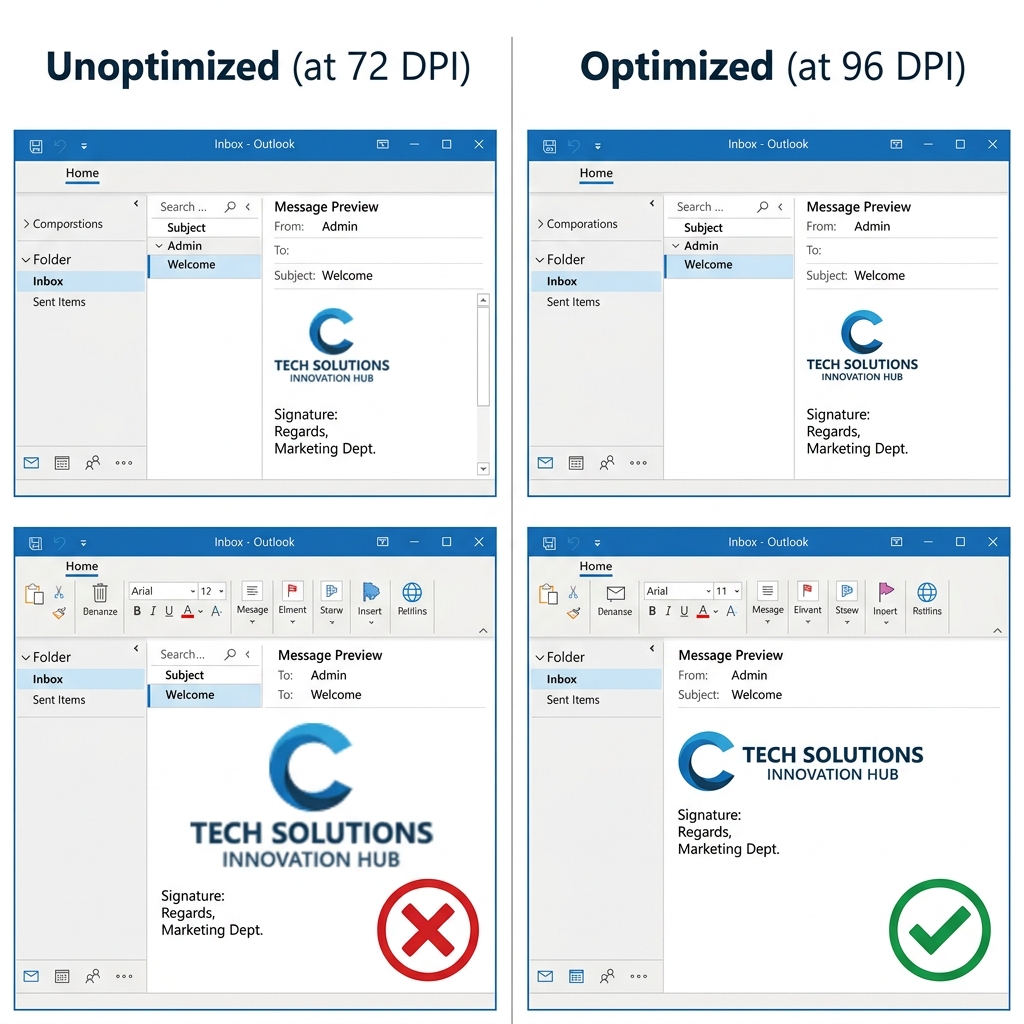
DPI Optimized comparison for Outlook rendering
Fonts change to Times New Roman
*Fix:* Use a "system font stack" (e.g., Arial, Verdana). Avoid custom or web-only fonts that aren't installed on the recipient's computer.
Links are not clickable
*Fix:* Use the full https:// address in your HTML. Outlook often disables links that it considers suspicious or incomplete.
Best Signature Format for Outlook
For maximum reliability in professional environments, we recommend this specific setup:
- Layout: Use a simple 2-column or 1-column table.
- Balance: Keep a 60/40 ratio between text and images to avoid being flagged by spam filters.
- Width: Stick to a 600px maximum width to fit comfortably in the reading pane.
- Images: Export at 96 DPI and define fixed widths in the HTML code.
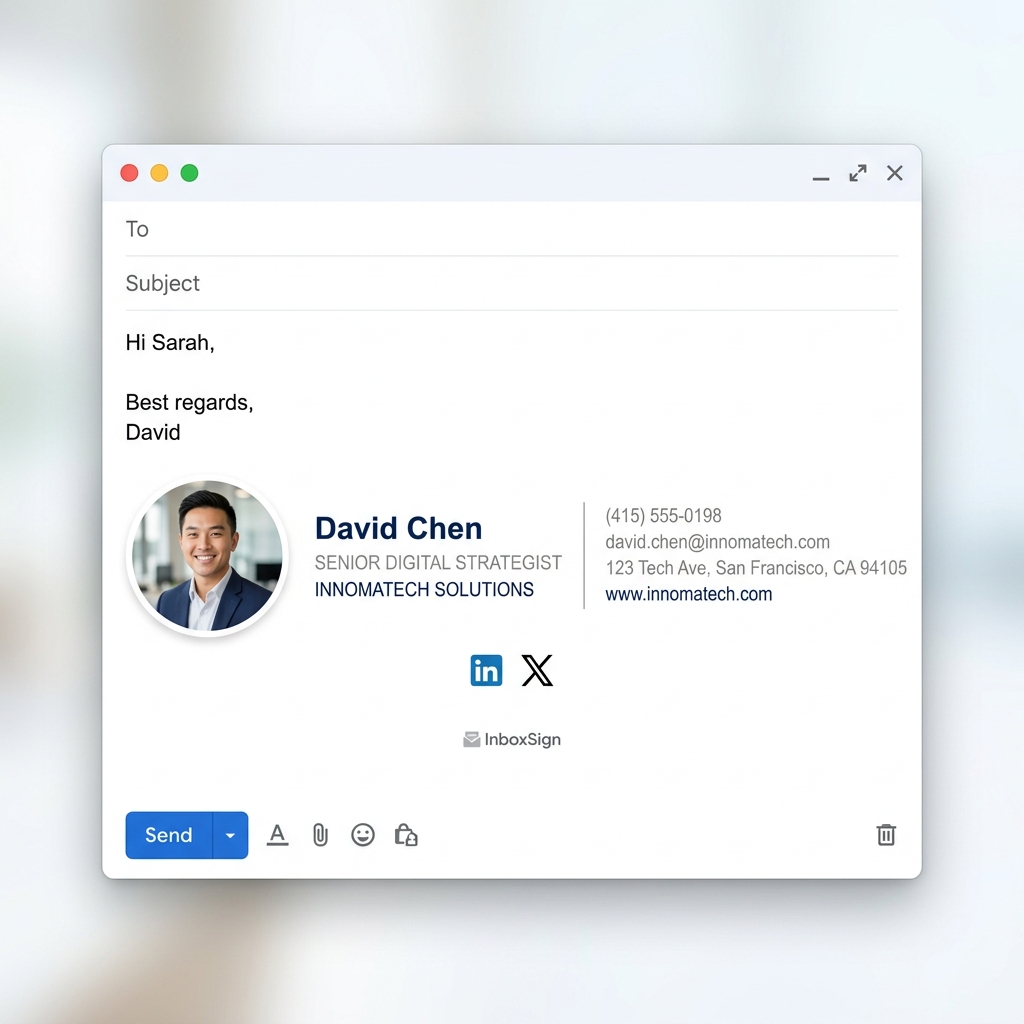
Recommended Outlook-compatible signature structure
How to Remove or Delete a Signature
If you have old or outdated signatures cluttering your list, here is how to remove them:
- Open the Signatures window via File > Options > Mail.
- Select the signature name from the list at the top.
- Click the Delete button.
- Confirm by clicking Yes, then click OK to save your changes.
Removing an existing signature from Outlook
Outlook Signature FAQ
Why does Outlook change my signature font?
Outlook will default to Times New Roman if it cannot find the specific font used in your HTML code. Always use standard system fonts like Arial or Georgia for the best results.
Why is my logo too big in Outlook?
This is usually caused by DPI scaling. Outlook treats high-resolution images like print files. Ensure your logo is exported at exactly 96 DPI.
Why does my signature look different on mobile?
Outlook for mobile uses a different rendering engine than the desktop app. If your signature is too wide (over 600px), it will force horizontal scrolling on phones.
Stop Fighting with Outlook Formatting
If your signature still breaks after following these steps, you are likely hitting a technical limitation of the Word rendering engine. Our generator accounts for high-DPI scaling, dark mode, and attachment bugs automatically, so you can build Outlook signature with no formatting issues, image bugs, or UTM tracking errors.
*Tested across real-world corporate environments including Outlook 2016, 2019, Microsoft 365, and New Outlook Desktop.*