
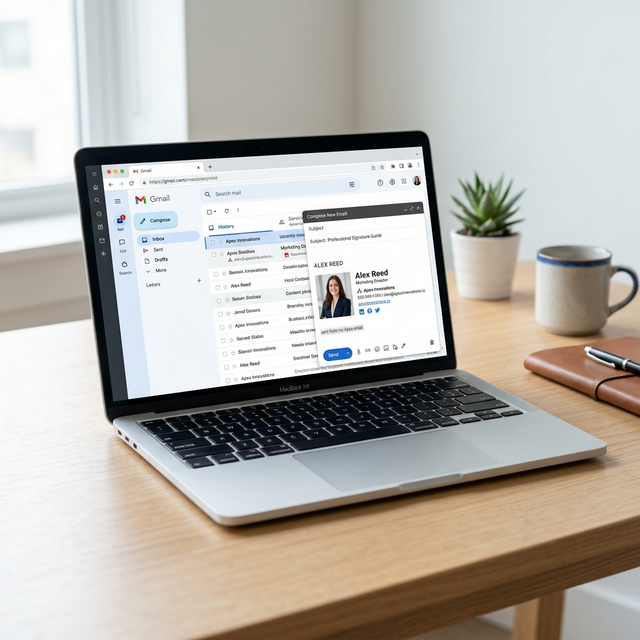
Quick Answer: How to Add an Email Signature in Gmail
To add a professional email signature in Gmail, follow these 8 steps:
- Open Gmail on your desktop.
- Click the Settings icon (gear) in the top right corner.
- Select See all settings.
- In the General tab, scroll down to the Signature section.
- Click + Create new and enter a name (e.g., "Official Business").
- Paste or type your signature into the editor box.
- Assign your signature as a default for both new emails and replies.
- Scroll to the bottom and click Save changes.
1. Where Gmail Signature Settings Are Located
The Gmail web interface centralizes its primary configuration options, but the paths can sometimes be confusing for new users.
Navigation Path
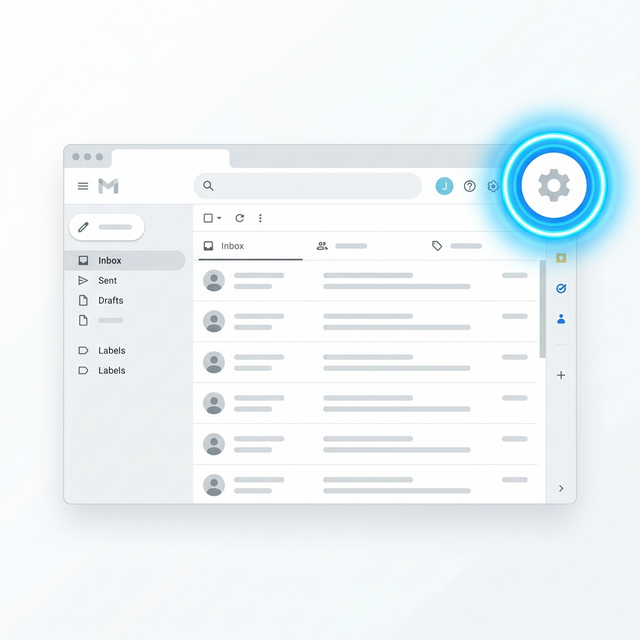
From your primary inbox, locate the Gear icon in the top-right corner. Clicking this reveals a sidebar with "Quick settings." To find the signature area, you MUST click the "See all settings" button at the top of that sidebar. This takes you to the deep configuration menu.
The Signature Section
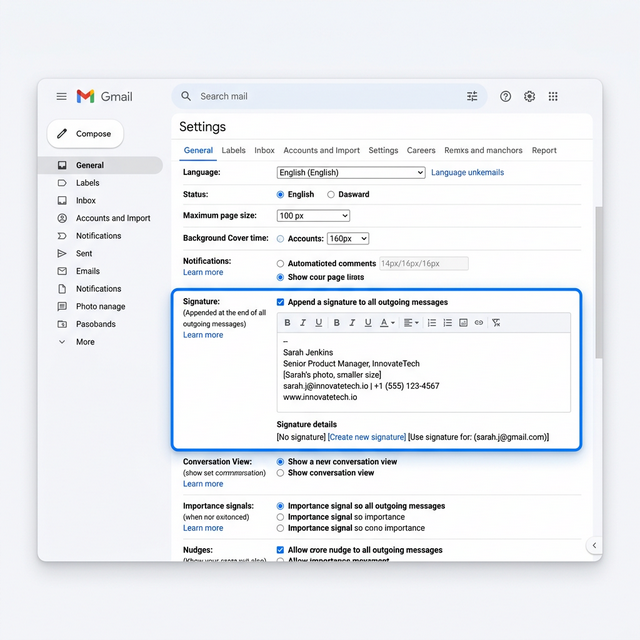
Once inside the General tab (which opens by default), you will need to scroll about three-quarters of the way down the page. Look for the bold Signature: label. This section allows you to manage your Gmail footer. If you are managing multiple aliases, you will see a dropdown to select the specific email address you wish to edit.
2. Step-by-Step Gmail Signature Setup (Desktop)
Setting up your professional identity requires more than just typing your name. Follow these steps to ensure nothing is missed:
- Open Gmail: Support your professional brand by logging into your account on a modern web browser.
- Access Settings: Navigate via the Gear icon to the See all settings screen.
- Scroll to Signature: In the General tab, locate the Signature block.
- Create New Profile: Click + Create new. Give your signature a clear name (e.g., "Main Professional").
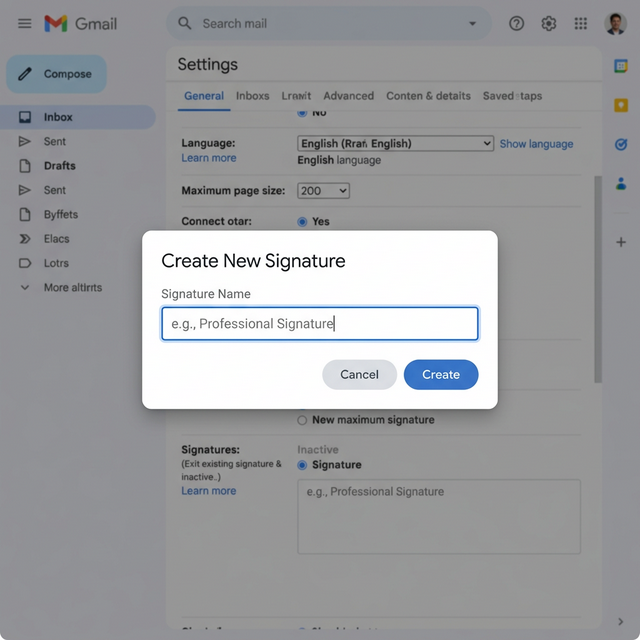
- Enter Your Content: Type your contact information or, better yet, paste it from a signature generator.
- Assign Defaults: Look at Signature defaults. Select your name from the dropdown for both "For new emails use" and "On reply/forward use."
- Refine Positioning: Locate the checkbox: *"Insert signature before quoted text in replies and remove the "--" line that precedes it."* Enable this. This ensures your signature appears directly after your new message, rather than being buried at the very bottom of a 20-email thread.
- Save Changes: This is the step most people miss. You MUST scroll to the very bottom of the page and click Save Changes.
3. How to Add an HTML Email Signature in Gmail
Gmail does NOT allow you to upload a raw .html file. Instead, it uses a rich-text editor that interprets the rendering of your code.
The Rendering Technique
To use an HTML signature, you should open the signature file in a web browser (like Chrome or Safari) first. Select the visual signature (not the code), copy it (Ctrl+C), and then paste it directly into the Gmail signature box.
Why Layouts Break
If you paste your signature and the columns collapse or the fonts change, it is usually because the HTML uses "modern" CSS techniques like Flexbox or Grid. Gmail's editor strips out advanced stylesheets.
Pro Insight: To ensure your Gmail signature stays perfect, your signature must be built using HTML Tables. Tables are the only layout method that Gmail’s restricted environment fully supports without stripping your design.
4. How to Add Images and Logos in Gmail
Images are the most common failure point in email footers. They either don't show up, appear too large, or show up as attachments.
Upload vs. URL
- Upload: You can click the "Insert image" icon and upload from your computer. This embeds the image, but it can increase your email's size and increase the chances of the "Message clipped" warning.
- URL (Hosted): Professional signatures use a secure HTTPS link to a hosted image. This keeps your email source code light and ensures your logo loads instantly from a server.
Gmail Proxy Behavior
Gmail uses an internal "Image Proxy" to serve images for privacy. If your image hosting is slow or not secured via HTTPS, Gmail will block the image completely. Always verify your hosting is public and secure.
5. How to Add Signature in Gmail Mobile (iPhone & Android)
A common source of confusion is that Gmail's desktop settings do not automatically sync to the "Signature" settings in the mobile app.
Gmail App Setup
- Open the Gmail app on your mobile device.
- Tap the menu (three lines) and go to Settings.
- Select your specific email account.
- Scroll to Signature settings.
- Enable the "Mobile Signature" toggle.
The Mobile Limitation
The Gmail app editor is extremely limited. It only supports plain text. If you paste a complex HTML signature here, it will likely lose its formatting.
The Fix: Most experts recommend using a simplified, text-only signature for mobile replies. If you absolutely need a branded version on mobile, use the Gmail web interface in your phone's browser, though this can be difficult to manage.
6. Common Gmail Signature Issues & Fixes
If your Gmail signature is misbehaving, it is likely due to one of these common technical quirks:
- Signature not showing:
- *Fix:* Check your "Signature defaults." If they are set to "No signature," it won't appear even if you've created one. Also, remember to click "Save Changes" at the bottom of the settings page.
- Formatting looks "broken":
- *Fix:* Avoid copying your signature directly from Microsoft Word or Google Docs. These programs add invisible code that Gmail’s editor cannot handle. Use a clean HTML generator instead.
- Images not loading for recipients:
- *Fix:* Ensure your image hosting is not behind a password. If you can see the image but your recipient can't, it's often a security setting on their end or a broken HTTPS link.
- Signature missing in long threads:
- *Fix:* Ensure the box *"Insert signature before quoted text"* is checked. Without this, Gmail hides your signature under the "three dots" menu in every reply.
7. Gmail Signature Best Practices (2026)
To ensure your signature remains effective and deliverable in 2026, adhere to these standards:
- 600px Width Limit: Mobile screens are narrow. Anything wider than 600px (ideally 450px) will force your recipient to scroll horizontally, which is a poor user experience.
- Web-Safe Font Fallbacks: Stick to fonts like Arial, Calibri, or Verdana. Gmail will ignore "fancy" fonts if the recipient doesn't have them installed on their computer.
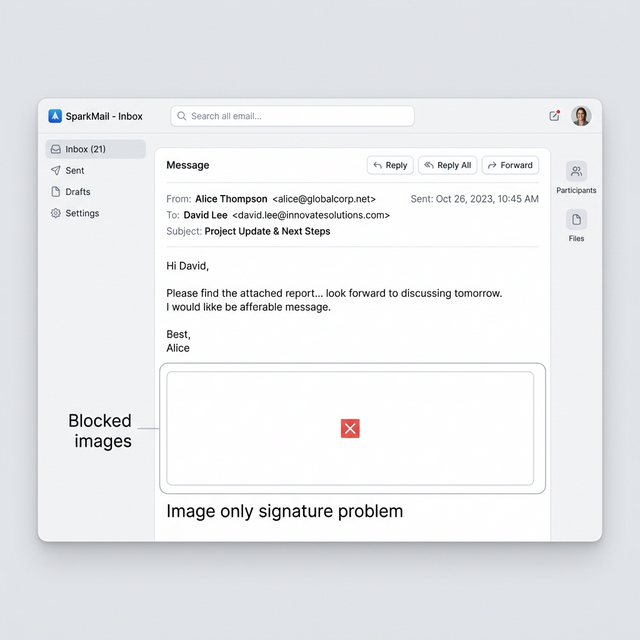
- Avoid Image-Only Signatures: Many email clients block images by default. If your signature is just one big image, your recipient will see a blank box instead of your phone number.
- Minimize Code Weight: Gmail clips emails larger than 102KB. Keep your signature code under 5KB to ensure your entire message is always visible.
8. Advanced Tips for Authority
- Multiple Signatures: Create one "Full" signature for new emails and a "Short" signature for replies. This keeps your communication clean and professional.
- UTM Tracking: Strategic linking in your signature is key. You can track how much traffic your professional footer generates for your brand.
- Departmental Branding: For larger teams, ensure everyone uses the same size guidelines to maintain a unified brand image.
Frequently Asked Questions (FAQ)
Why is my Gmail signature not showing?
The most common reason is that the "Signature defaults" are still set to "No signature." Go to Settings > General > Signature and ensure your signature name is selected for new emails and replies. Don't forget to click "Save Changes" at the bottom.
How do I add a logo to my Gmail signature?
In the signature settings box, click the "Insert image" icon. We recommend using a hosted image URL (HTTPS) to keep your email size small and prevent the logo from showing up as an attachment.
Can Gmail signatures be different for replies?
Yes. You can create a second signature profile (e.g., "Short Signature") and assign it specifically to the "On reply/forward use" dropdown in the defaults section.
Why does my Gmail signature look different on mobile?
The Gmail mobile app uses a different rendering engine than the desktop browser. To fix this, ensure your signature layout is mobile-responsive and kept under 450px in width.
Can I use HTML in my Gmail signature?
Yes, but you cannot paste the raw code. You must open your HTML signature in a web browser, copy the rendered visual area, and paste it into the Gmail editor box.
Instead of dealing with formatting issues manually, tools like InboxSign help you generate signatures that work across Gmail, Outlook, and mobile without the technical headache.