

Quick Answer: What Makes an Email Signature Professional?
A professional email signature combines clean design, high-legibility typography, and technical compatibility across all major email clients. It typically includes your Transparent Identity (Name/Title), Direct Contact Channels, and a Mobile-Responsive Layout. It should render consistently across Gmail, Outlook, Apple Mail, and mobile devices.
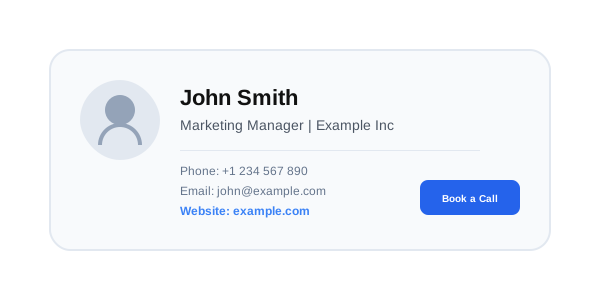
What Makes a Professional Email Signature?
At its core, a professional signature must satisfy five critical pillars:
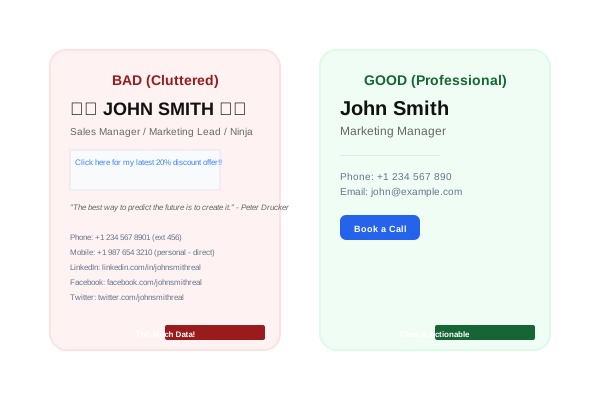
- Clean Structure: A layout that doesn't feel cluttered or overwhelming.
- Web-Safe Fonts: Typography that renders identically across Windows, Mac, and Mobile.
- Mobile Responsiveness: A design that scales or stacks for small touchscreens.
- Minimalist Data: Including only what is necessary for the recipient to take action.
- Legal Compliance: Adhering to regional transparency laws like the UK Companies Act or GDPR.
Design Principles for Email Signatures
Professional design is about guiding the recipient's eye to the most important information first.
- Visual Hierarchy: Use font size and weight to differentiate your Name (Primary) from your Title (Secondary).
- White Space (Padding): Avoid "cramming" text. Space between lines (line-height) and sections is vital for readability.
- Alignment: Consistent left or center alignment prevents a "jagged" look that feels unprofessional.
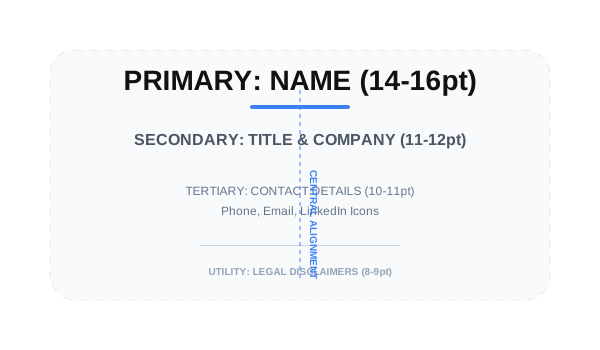
The Ideal Email Signature Layout
A well-balanced layout focuses on clarity and accessibility. Here is the text-based blueprint for a standard professional signature:
John Smith
Marketing Manager | Example Inc
Phone: +1 234 567 890
Email: john@example.com
Website: example.com
Technical Trade-offs: HTML vs. Image Signatures
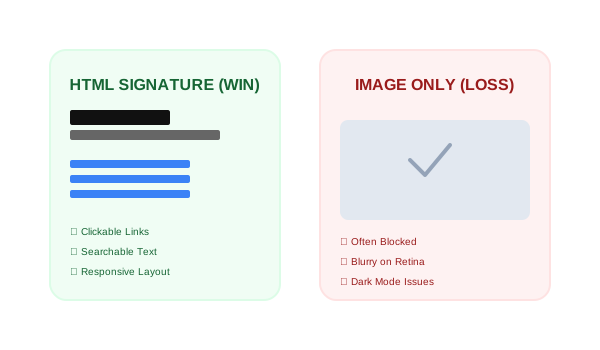
Many users try to export a signature as a single image from Canva or Photoshop. This is a high-risk strategy.
- Outlook Behavior: Outlook uses a Word-based rendering engine, making precise HTML structure critical for stability. It often blocks external images by default.
- Gmail Scaling: Gmail may shrink or blur large images, making text unreadable.
- Dark Mode: Image-only signatures usually have white backgrounds that "vibrate" harshly against dark mode interfaces.
The Verdict: Always use a table-based HTML signature with hosted images for maximum stability.
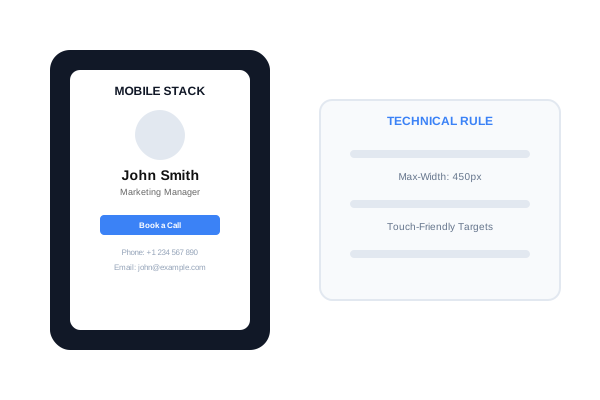
Mobile-First Responsiveness
With over 60% of emails now opened on mobile devices, a "fixed-width" signature is obsolete.
- Stacking Layouts: A professional signature should move from a horizontal view (Desktop) to a stacked view (Mobile).
- Touch Targets: Icons and links should have a minimum tappable area of 44x44 pixels.
- Width Limit: Keep your desktop width under 450px to ensure it fits mobile screens. *Mobile-first design is no longer optional.*
Fonts, Colors & Compatibility
To ensure your signature looks identical everywhere, you must follow these "Safe-Zone" rules:
- Fonts: Stick to Arial, Helvetica, or Verdana. Always define a fallback font stack (e.g.,
Arial, sans-serif) to prevent OS-level overrides.
- Colors: Use high-contrast colors. Some clients override font color automatically, so always test both environments.
- Dark Mode Fixes: Use transparent PNGs for logos so they blend into dark backgrounds rather than appearing as white boxes.
Email Signature Performance & Engagement
A signature isn't just ID—it's a marketing tool. High-performing signatures utilize:
- UTM Links: Track which contact methods drive the most traffic.
- CTA Banners: Use small, high-quality banners for webinars or meeting links to drive ROI.
- Branding Impressions: Consistent signature usage across a team builds significant brand equity over thousands of emails.
Common Email Signature Mistakes
Avoid these "Professional Trust" blockers that damage your professional credibility:
- Image-Only Signatures: Invisible when images are blocked.
- Too Many Social Links: Including 5+ icons looks cluttered and confusing.
- Broken HTML Layouts: Signatures made in Word that contain thousands of lines of "junk" code.
- Motivational Quotes: Often seen as unprofessional in a B2B environment.
How to Test Your Email Signature
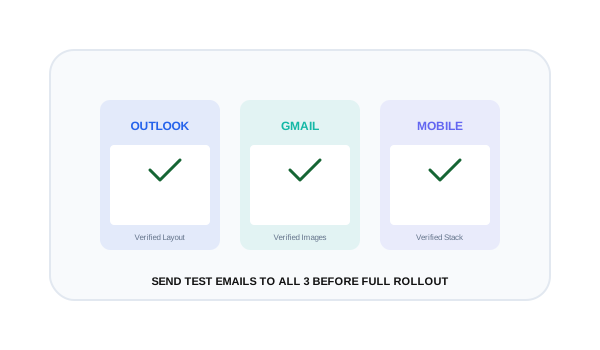
Never roll out a new signature to your whole team without a "Stress Test."
- Send Test Emails: Send tests to an iPhone, Android, and Outlook Desktop. Use tools like Litmus or Email on Acid for advanced previews.
- Toggle Dark Mode: Ensure your logo and text remain visible when the background flips.
- Check Links: Click every single link to ensure they work correctly.
Setup Guides for All Platforms
Ready to install your signature? Follow our step-by-step instructions:
Professional Branding Made Simple
Using a structured email signature generator can help maintain consistency across all devices while reducing manual setup errors. Our tools manage the spacing, mobile stacking, and Outlook compatibility code for you, ensuring your final impression is always a professional one.
*Technical review completed for 2026 digital communication standards.*