
Quick Answer: What is UTM Tracking?
UTM (Urchin Tracking Module) parameters are simple tags added to the end of a URL that tell Google Analytics exactly where a visitor came from.
- What it tracks: Source, medium, and specific campaign performance.
- What you see: Data on clicks, bounce rates, and conversions specific to your email signature.
- Where data appears: Inside Google Analytics 4 (GA4) under Acquisition reports.
What Does Email Signature ROI Mean?
ROI (Return on Investment) in the context of email signatures isn't just about direct sales; it's about measurable engagement that leads to business growth:
- Direct Clicks: How many people are actually interested enough to click your website or portfolio?
- Conversions: Did that click result in a demo booking, a newsletter signup, or a whitepaper download?
- Engagement: Are recipients of your prospecting emails visiting your most valuable landing pages?
- Brand Attribution: Proving that your "Marketing Banner" actually drove traffic to your new product launch.
[!IMPORTANT]
Attribution GAP: Without UTMs, traffic from email signatures often shows up as "Direct" or "Unassigned" in GA4, making your signature marketing efforts look effectively invisible.
How UTM Tracking Works (Visual Flow)
Understanding the journey from a click to a data point is critical for correct setup and reporting.

*How UTM tracking connects email clicks to your centralized analytics data.*
The Workflow:
- The Click: Recipient clicks a link in your professionally branded signature.
- The Tag: The browser reads the tracking tags (e.g.,
utm_medium=signature).
- The Tracking: Google Analytics registers the session and attributes it to the "Signature" channel.
- The Report: You view the performance ROI and conversion data in your dashboard.
The UTM Parameters Anatomy Explained
To build a tracked link, you need to understand the anatomy of a correctly formatted UTM string.
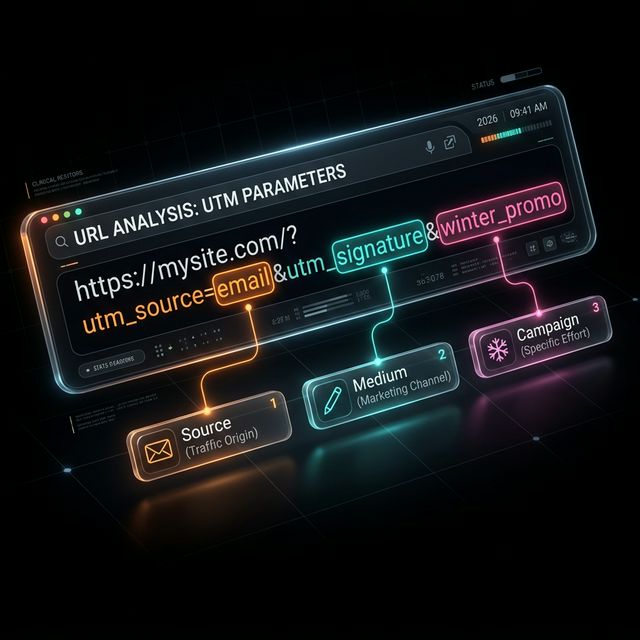
| Parameter | Purpose | Example Value |
|---|---|---|
| utm_source | Traffic origin | email |
| utm_medium | The channel | signature |
| utm_campaign | The specific goal | sales_outreach_2026 |
| utm_content | The specific link | cta_button |
| utm_term | The sender name | jane_doe |
How to Create UTM Links Using InboxSign
The "manual way" of building UTMs often leads to typos that break links. Our built-in UTM Builder automates the technical heavy lifting directly within the editor.
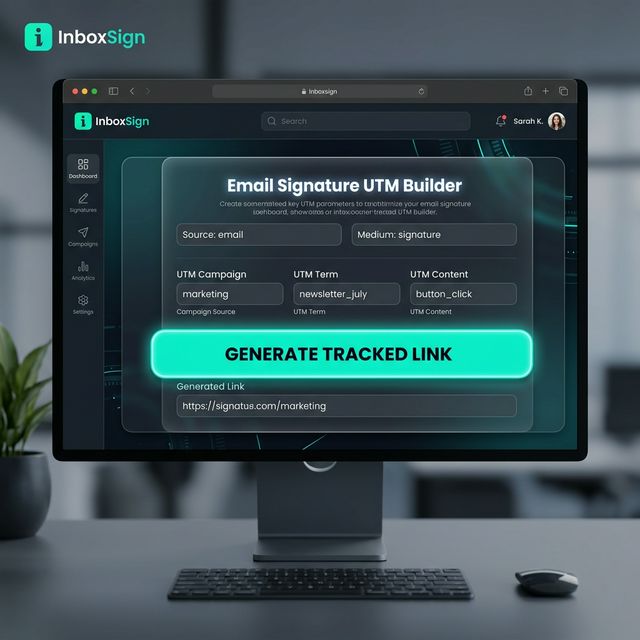
*Use the InboxSign tool to generate tracked URLs without manual coding errors.*
Step-by-Step Tool Setup:
- Open the Generator: Navigate to the Signature Generator.
- Enter Destination URL: Paste the page you want to drive traffic to.
- Define Your Source: Set this to
email.
- Define Your Medium: Set this to
signature.
- Add Your Campaign: Give it a clear name (e.g.,
q1_promo_banner).
- Generate: Click 'Generate Link' and the system automatically updates your signature code.
Where to Use UTM Links in Your Signature
Not all links are created equal. Focus your tracking on high-conversion "hotspots" within your layout:
- Primary CTA Button: Your "Book a Demo" or "View Portfolio" button.
- Marketing Banner: Track the performance of seasonal promotions.
- LinkedIn Icon: See how many recipients are checking your professional profile.
- Logo: Discover if your brand logo is a viable (and often ignored) traffic source.
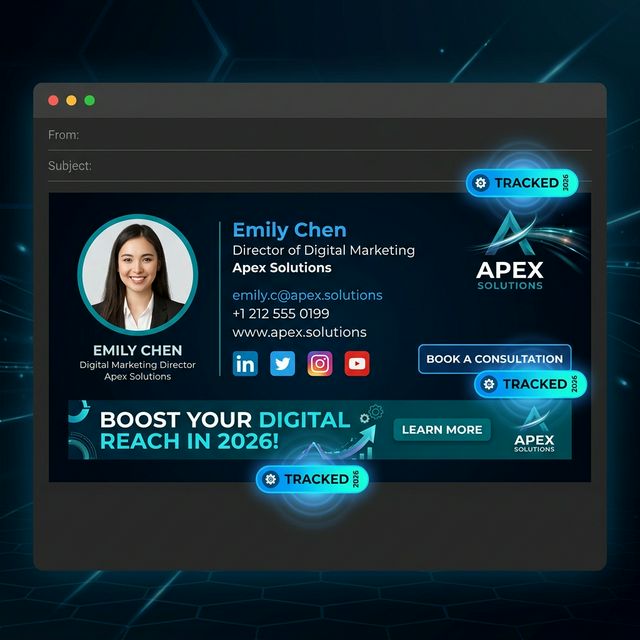
*Focus UTM tracking on high-value elements like CTA buttons and marketing banners library.*
Team Tracking Strategy (High-Value ROI)
If you manage a sales or support team, you shouldn't just track "Signatures" as a whole. You should track individual performance to see who is driving the most engagement.
By using the utm_term parameter, you can differentiate between sends across your entire organization. This allows you to see which departments or individual contributors have the highest click-through and conversion rates.
Viewing Results in Google Analytics 4 (GA4)
Once your tracked signature is live, follow these steps to see your results:
- Traffic Acquisition: In GA4, go to Reports > Acquisition > Traffic Acquisition.
- Filter by Medium: Search for
signaturein the filter bar.
- Secondary Dimension: Add 'Session campaign' to see which specific banner or link is performing best.
- Check Conversions: Look at the "Conversions" column to see if signature clicks resulted in actual lead signups or demo bookings.
UTM Tracking Best Practices Checklist
- All Tags Lowercase: GA4 treats 'Signature' and 'signature' as different sources.
- No Spaces: Always use underscores or hyphens instead of spaces.
- HTTPS Links Only: Ensures your tracking isn't stripped by browser security redirects.
- Consistent Campaigns: Use the same campaign names for all team members to keep data unified.
- Test Before Send: Always click the link in a real test email before rolling it out to your team.
Start Tracking Your ROI Today
Stop guessing whether your email signature is working as a marketing asset. Every email is a professional opportunity that deserves proper attribution.
Start tracking every click from your email signature by creating your UTM links and deploying them with the InboxSign generator. It's the fastest way to turn your footer into a fountain of data-driven insights.