

Quick Answer: The 3 Rules of HTML Email signatures
To ensure your professional signature works everywhere, follow these technical pillars:
- Table-Based Layout: Use specific table tags for all layout and positioning.
- Strict Inline CSS: Apply styles directly to every HTML element. No external or embedded styles.
- Secure Image Hosting: Never attach images; link to a secure (HTTPS) public URL.
What is an HTML Email Signature?
An HTML email signature is a small snippet of hyper-text markup language designed to be rendered within the "footer" environment of an email client. Unlike a simple text sign-off, it allows for rich visual elements, clickable social icons, and professional branding.
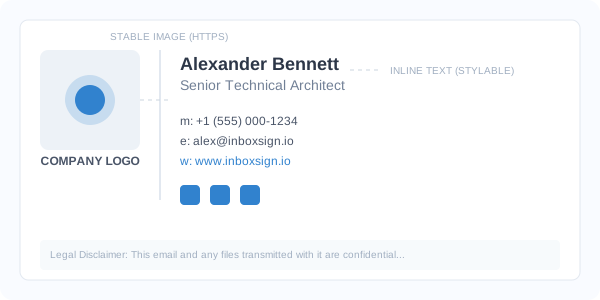
*Caption: A structured HTML signature utilizes a technical grid to keep brand elements aligned.*
Because it is "code," an HTML signature is an active part of your digital identity. It supports vCard integration and marketing banners, making it a critical tool for ROI.
Why Email HTML is Different from Web HTML
In web development, you use Flexbox and Grid to create responsive layouts. In email signature development, these modern tools are "blacklisted" by most rendering engines.
| Feature | Modern Web HTML | Email Signature HTML |
|---|---|---|
| Layout | Flexbox, CSS Grid | Nested Tables |
| Styles | External .css files | Inline style="" |
| Fonts | Google Fonts / Web Fonts | System Safe (Arial, Verdana) |
| SVGs | Supported natively | Raster (PNG/JPG) only |
| Engine | V8 / WebKit | MSO (Word) / Gmail Filter |
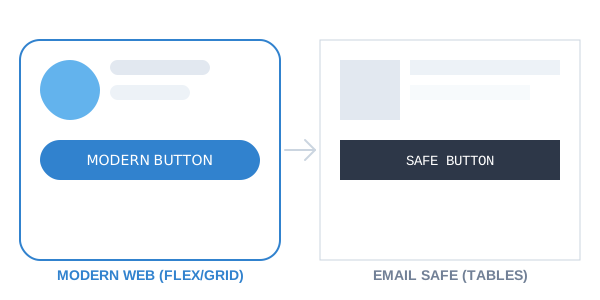
*Caption: Email clients render HTML signatures using legacy engines that do not support modern browser standards.*
Core Technical Standards (Critical)
1. Table-Based Layout (The Foundation)
Tables are mandatory because they provide a "rigid" skeleton. While standard container tags can shift based on the container size, a cell with a fixed width remains stable even in restrictive clients.
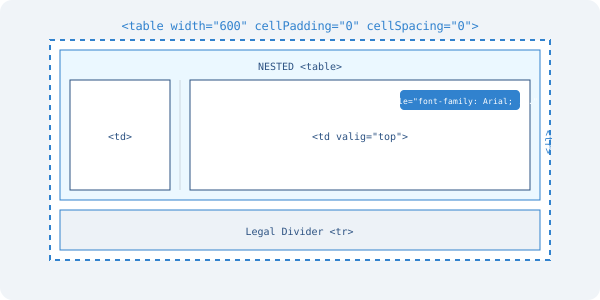
<!-- Robust Table skeleton --><table cellPadding="0" cellSpacing="0" border="0" width="450">
<tr>
<td style="padding-bottom: 10px;">Alexander Bennett</td>
</tr>
</table>
2. Inline CSS Only
You cannot use embedded style blocks in the head of your signature because Gmail and Outlook Web often "strip" sections entirely. Every tag must be styled individually using the style attribute.
<!-- Correct Inline Style --><td style="font-family: Arial, sans-serif; color: #1a202c; font-size: 14px;">
Professional sign-off
</td>
3. Fixed Width Design
We recommend a maximum width of 600 pixels. However, internal testing at InboxSign shows that 450 pixels is the "sweet spot" for 2026 devices, ensuring 100% visibility on both iPhones and ultra-wide desktop monitors without horizontal cut-offs.
4. Secure Image Hosting (No Attachments)
Never "Embed" your logo. This causes the image to appear as an unwanted paperclip attachment.
- Method: Upload your logo to a CDN or secure host.
- Protocol: Use HTTPS. Secure clients (like Office 365) will often block non-secure "HTTP" images.
Email Client Compatibility (The Big Three)
Every email client handles your html email signature differently. Understanding these three behaviors is essential for a professional setup:
- Gmail (Web & App): Gmail is notorious for stripping CSS that isn't inline. It also has a 102KB limit. If your HTML signature is too long, Gmail will "Clip" the message, hiding your professional links.
- Outlook Desktop (Windows): Uses the Microsoft Word engine. It ignores most padding on
tags and struggles withline-height. It requires specific Outlook Web signature setup to stay aligned.
- Apple Mail (macOS/iOS): The most flexible client. It uses the WebKit engine and supports modern CSS better than others, but it still requires iPhone signature guide during setup to preserve styles.
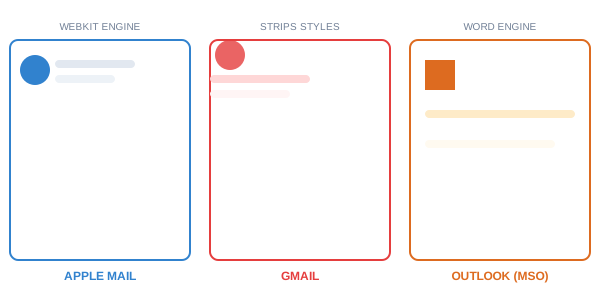
*Caption: The same code can look different across clients due to varied rendering engines.*
Common HTML Signature Issues & Fixes
- Issue 1: Blue Links on White Text: Many clients (like iOS) automatically turn text that "looks like" a phone number or email into a blue link.
- Fix: Manually wrap these elements inside a proper HTML span tag with a defined color and no text decoration.
- Issue 2: Images with "Red X": This happens when the image URL is broken or blocked by a firewall.
- Fix: Use a dedicated secure image host or a structured branding guide.
- Issue 3: Signature Not Applied to Replies: Often a settings oversight.
- Fix: Check your Gmail default settings or Outlook preferences.
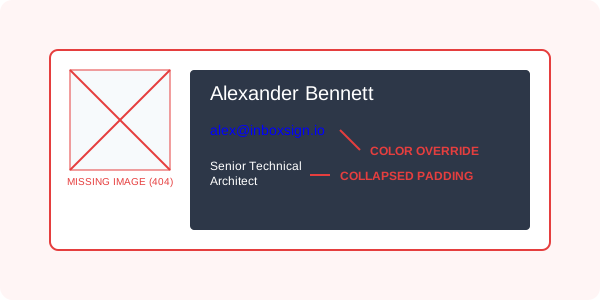
*Caption: Avoid broken signatures by testing across multiple rendering environments.*
Dark Mode Compatibility
Dark Mode is no longer an optional feature. Most clients now perform automatic color inversion.
- The Risk: Your dark logo might become invisible on a dark background.
- The Fix: Use a logo with a subtle white glow/outline or use a transparent PNG background to ensure it "pops" in both modes.
Mobile Responsiveness
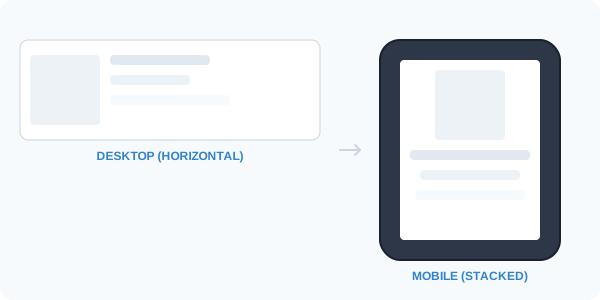
Because email signatures are usually placed inside narrow table columns, we recommend a single-column approach for mobile. If you use two columns, they should be designed to "stack" vertically on smaller screens.
[!TIP]
Instead of writing HTML manually, use the InboxSign signature generator to create a fully compatible footer that works across all primary mobile and desktop email clients.
2026 Best Practices Checklist
Perform this technical audit before sending your signature to your team:
- Inline CSS Check: Is the style on the tag, not the head?
- Width Control: Is the container restricted to 600px?
- Table-Based: Are there zero floating container elements?
- HTTPS verification: Are all hosted assets secure?
- Alt-Text: Do images have descriptive tags for accessibility?
- Gmail Clip Test: Is the total file size well under 100KB?
The Technically Optimized Solution
Microsoft Office 365 and Google Workspace are professional standards—ensure your code reflects that level of authority. Create a technically optimized HTML email signature using the InboxSign generator and eliminate rendering issues forever.
*Technical and system review completed for 2026 HTML5 and MSO rendering standards.*