
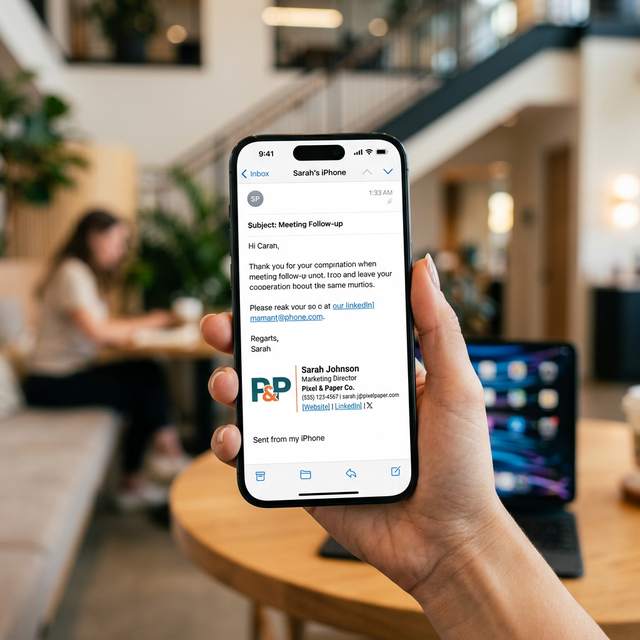
Quick Answer: How to Add Signature on iPhone
Follow these steps to add an email signature on iPhone or iPad:
- Copy your signature from a professional email signature generator.
- Open the Settings app on your device.
- Navigate to Settings > Mail > Signature.
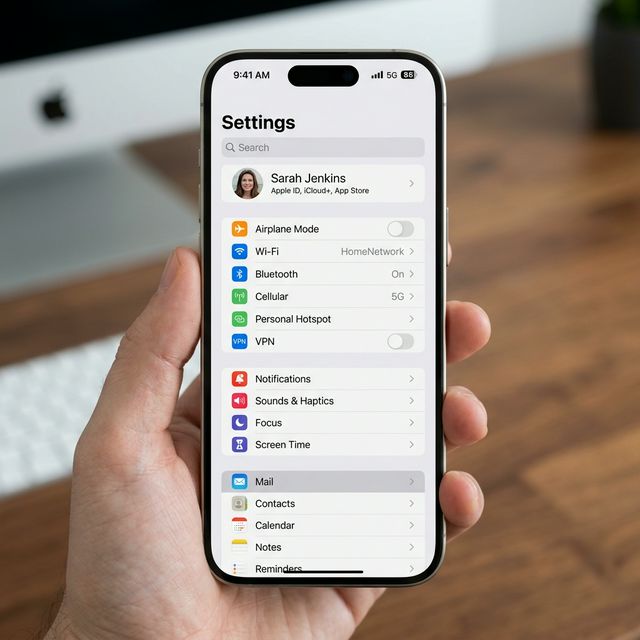
- Select Per Account to maintain separate signatures for work and personal use.
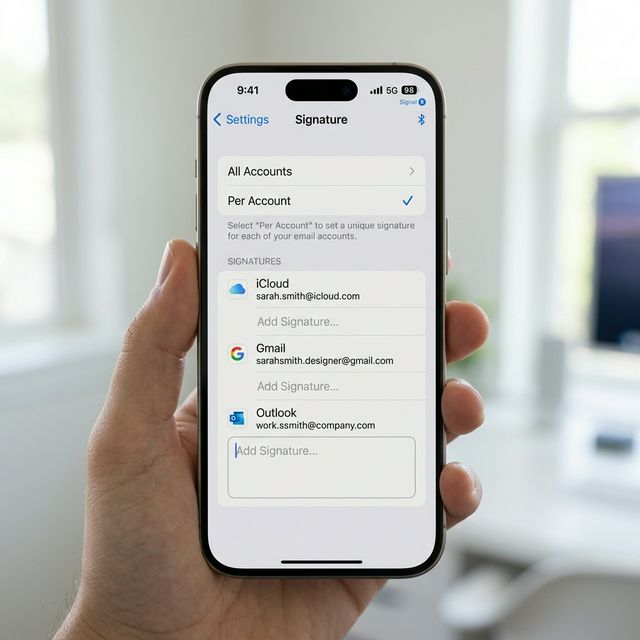
- Paste your signature into the box for your work account.
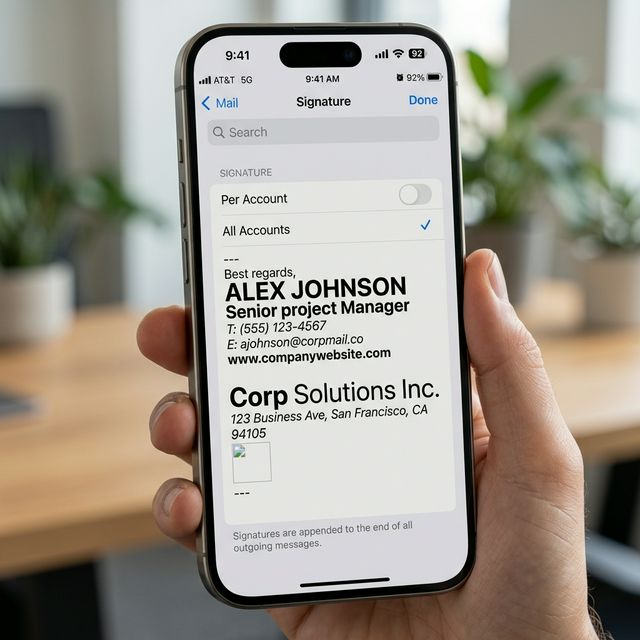
- Undo Change Attributes: Immediately shake your phone and select this option to restore HTML formatting.
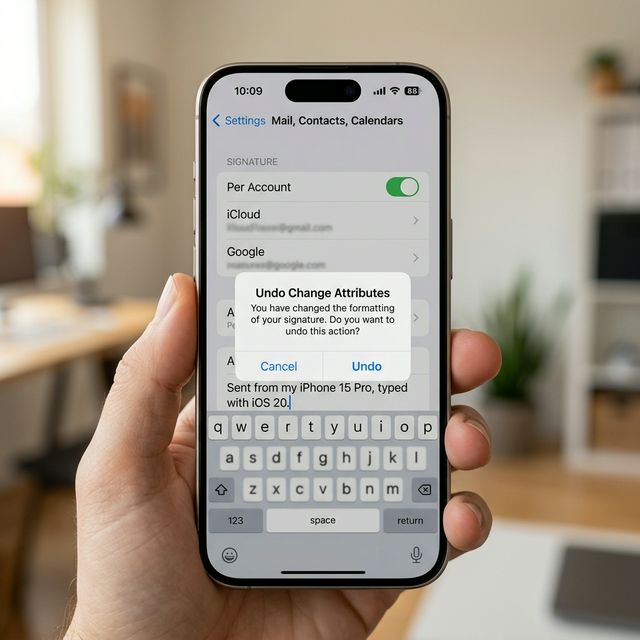
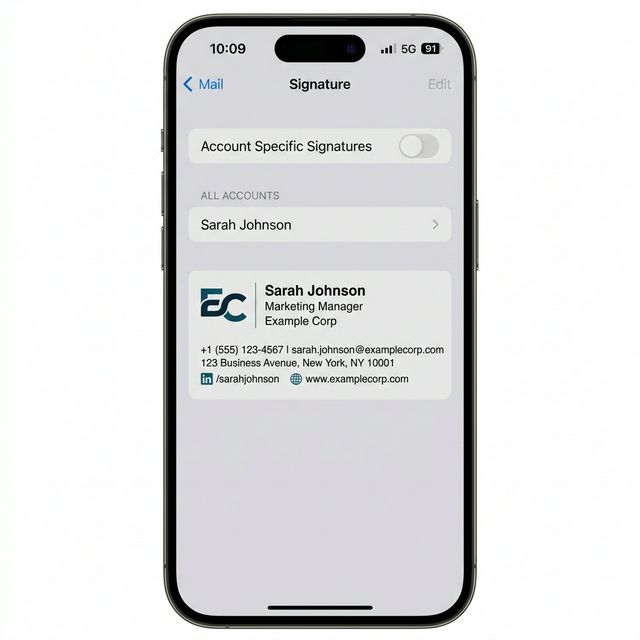
Your signature is now active across selected accounts.
[!IMPORTANT]
The "Shake to Undo" step is the only way to prevent iOS from stripping your signature's CSS styling. If you miss this window, you must delete and paste again.
Before You Paste: iPhone Signature Setup Checklist
Before you paste your signature, make sure the setup environment is correct:
- Use Safari: Prevents hidden formatting from being injected by third-party mobile browsers.
- Use HTTPS Images: Ensures your images load correctly on all mobile networks and secure environments.
- Avoid Copying from Emails: Prevents nested HTML code from previous threads from breaking the mobile layout.
- Keep Layout Narrow: Improves mobile rendering and eliminates horizontal scrolling for the recipient.
Why the Default 'Sent from my iPhone' Is Hurting Your Brand
The default iPhone signature is a missed marketing opportunity that signals three things to your recipient:
- Lack of Authority: Clients expect consistency. A mobile sign-off can feel like an afterthought.
- Conversion Gaps: You lose the chance to drive traffic to your portfolio, LinkedIn, or booking links.
- Visual Clutter: The generic text adds no value to your corporate identity.
Why does iPhone change my email signature formatting?
The iOS Mail app applies an internal formatting normalization process to every paste operation. This behavior is consistent across Apple Mail versions (iOS 15 through the latest iOS 2026 builds) and is designed to ensure compatibility with plain-text email systems.
Historically, iOS tries to "force-align" your signature to match the system's default font by stripping padding, margin, and custom line-height values. The only way to bypass this normalization and restore your modern HTML layout is via the "Shake to Undo" command mentioned below.
Can you use HTML email signatures on iPhone and iPad?
Yes, but the installation requires precision. Setting up a business email signature on iPhone is different than desktop because the OS actively cleans the code during the paste.
1. The Isolation Strategy
Open Settings > Mail > Signature. We recommend choosing "Per Account." This ensures your work branding doesn't appear on personal messages from your private iCloud or Gmail accounts.
2. The Clean Paste
Delete "Sent from my iPhone" entirely. Tap and hold in the empty box, then select Paste. Your signature will likely appear distorted—this is normal. Do not exit the settings yet.
How do I fix a broken email signature on iOS?
The "Shake to Undo" method is the "secret" fix for iPhone email signatures.
The Solution:
- As soon as you paste, physically shake your iPhone.
- Select "Undo Change Attributes" from the menu that appears.
- Your signature will instantly revert to its intended professional design.
Warning: This behavior is time-sensitive. If you navigate away or click save before shaking, the formatting normalization becomes permanent.
Common iOS Signature Issues & How to Fix Them
In most production email environments, mobile issues follow a predictable pattern:
- Issue: Images appear as empty boxes
- Cause: Images are not hosted on an HTTPS server or are blocked by privacy settings.
- Fix: Use a secure CDN to host your images.
- Issue: Links are not clickable
- Cause: iOS requires explicit protocol definitions for hyperlinks.
- Fix: Ensure URLs use the full
https://prefix and avoiddomain.comshorthands.
- Issue: Broken layout in Dark Mode
- Cause: Automatic color inversion by the iOS Mail engine for readability.
- Fix: Use transparent PNGs and neutral text colors (like dark gray) that remain visible.
Limitations of iPhone Email Signatures
- No Advanced CSS: Support for flexbox or grid is non-existent.
- Font Restrictions: Custom web fonts fallback to Helvetica or San Francisco.
- Render Engine: iOS uses a stripped-down version of WebKit for signature previews.
Best Practices for Mobile-First Signatures
- Narrow Width (280–320px): This prevents horizontal scrolling and ensures the entire signature is visible on narrow devices like the iPhone SE.
- Single-Column Stack: Stacking elements vertically is the most stable approach for the mobile rendering engine.
- High Contrast: Use colors that remain legible during automatic Dark Mode transitions.
- Compressed Banners: Keep marketing banners under 100px in height to avoid overwhelming the recipient's screen.
- Limit Primary Actions: Limit links to 1–2 primary actions. This prevents visual clutter and improves the click intent for your most important conversion goals.
How to Test Your iPhone Email Signature
After installation, send a test email to yourself and open it on multiple apps:
- iPhone Mail app
- Gmail app
- Outlook app
During testing, check for:
- Alignment: Ensure text and icons are centered or left-aligned correctly.
- Image Loading: Verify that logos and social icons appear instantly.
- Link Clickability: Tap every link to ensure they open in a browser.
- Dark Mode Appearance: Toggle system dark mode to see if text remains legible.
Fix Your Mobile Formatting Issues
A generator built for iOS can help maintain consistent formatting across devices. Our Email Signature Generator creates iOS-optimized signatures that handle the technical heavy lifting for you.
*Technical verification completed for all current iOS versions.*