

Quick Answer: How to Add Email Signature in Outlook Web
To add a signature in Outlook Web, follow these 6 rapid steps:
- Open Outlook Web and click the Gear Icon (Settings).
- Click View all Outlook settings at the bottom of the column.
- Go to Mail > Compose and reply.
- Type a name for your signature and Paste your content into the editor.
- Set your Default Signatures for New messages and Replies.
- Click Save at the bottom.
Where to Find Signature Settings in Outlook Web
The Outlook Web interface hides its primary configuration under a secondary menu. Most users get stuck in the "Quick Settings" sidebar which only offers basic toggles.
To access the full suite of signature tools, click the Gear icon in the top-right corner, then scroll to the very bottom and select "View all Outlook settings".

*Caption: Access the full Office 365 settings dashboard.*
Step-by-Step: Add Email Signature in Outlook Web
Step 1: Navigate to 'Compose and Reply'
In the settings panel, select Mail from the first column, then click on Compose and reply in the second column. This is the central hub for your professional identity.
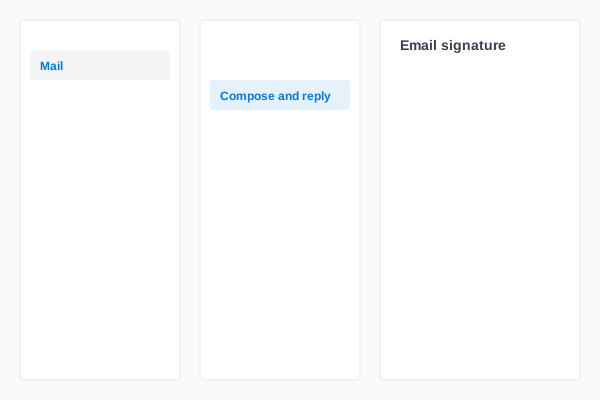
*Caption: Navigate to the signature settings within the Outlook panel.*
Step 2: Create a New Signature Profile
Click on + New signature. Give your signature a descriptive name (e.g., "Official Brand Signature"). This is a mandatory step before you can paste any content.
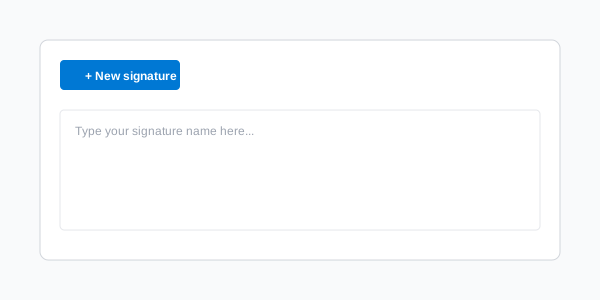
*Caption: Click + New signature to create your first profile.*
Step 3: Add Your Content and Formatting
Click into the text editor. You can use the toolbar to add bold text, links, or colors. For a professional look, we recommend pasting a rendered signature from a browser.
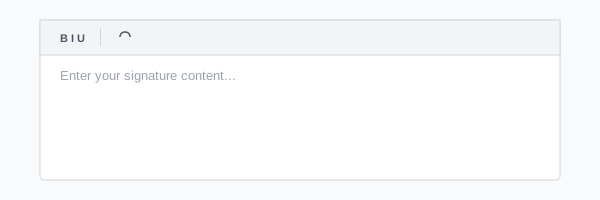
*Caption: The signature editor provides basic rich-text capabilities.*
Step 4: Verify Your Design
Once pasted, check that your links are clickable and your colors are correct. If the layout shifts, you may need a more robust HTML structure.

*Caption: Confirming your signature's layout and style in the editor.*
Step 5: Set Default Signatures
Scroll down to the Select default signatures section. Use the dropdowns to assign your new signature to New messages and Replies/forwards.
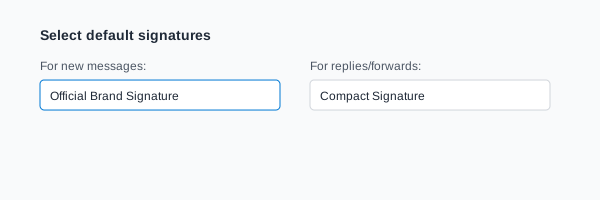
*Caption: Assign your signature to different message types to ensure consistency.*
Step 6: Save Changes
This is the final, essential step. Click the Save button in the bottom-right corner of the panel. If you exit without clicking this, your changes will be lost.

*Caption: Always click Save to commit your signature to your OWA account.*
HTML Signatures in Outlook Web (Important)
Outlook Web supports HTML, but it lacks a "Source Code" button. You cannot paste raw code (like <table>).
Best Practice:
- Open your HTML signature file in a web browser.
- Copy the visual rendering (highlight the design and press Ctrl+C).
- Paste into the Outlook Web box.
- Outlook will interpret the CSS and tables correctly during the paste process.
[!TIP]
Instead of manually formatting your signature, use the InboxSign generator to create an Outlook-ready footer that works without breaking.
Adding Images / Logo to Your OWA Signature
Images are the most common failure point in Office 365. To prevent your logo from appearing as an attachment or a broken "red X" box:
- Host Your Images: Use a secure HTTPS URL (e.g., Cloudinary or ImgBB).
- Insert via URL: Paste the image directly from its hosted URL into the editor box.
- Set Dimensions: Ensure your logo is no wider than 200px to maintain balance.

*Caption: Adding a logo via hosted URL ensures better delivery and layout.*
Common Outlook Web Signature Issues (Critical)
- Issue 1: Formatting Breaks: Outlook Web often collapses complex layouts.
*Fix:* Use simple, table-based HTML rather than modern Flexbox or Grid.
- Issue 2: Images Not Showing:
*Fix:* Verify your images are using HTTPS. Outlook blocks non-secure image links for privacy reasons.
- Issue 3: Signature Not Appearing:
*Fix:* Double-check the Default Signature dropdowns (Step 5). Many users create the signature but forget to assign it.
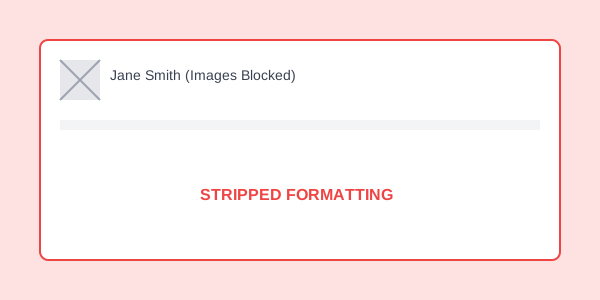
*Caption: Avoid broken layouts by using Outlook-compatible code.*
Best Practices for Outlook Web Signatures
- Width Constraint: Keep your signature under 600px to avoid horizontal scrolling.
- Table-Based Layout: Use
<table>for columns. Outlook 365 often stripsfloatorflexproperties.
- Minimalist Images: Limit your signature to 1-2 images to reduce the risk of spam filtering.
- Web-Safe Fonts: Stick to Arial, Calibri, or Helvetica for 100% consistency across recipients.
Mobile Experience: Does It Sync?
Crucially, Outlook Web signatures do NOT sync to the Outlook Mobile app for iOS or Android in most configurations. You must navigate to the settings within your smartphone app and set up your mobile signature separately. Because mobile apps often strip HTML, we recommend a clean text signature for your phone.
The Outlook Web Setup Checklist
- Default Set: Assigned to both New Messages and Replies?
- Links Tested: Are social icons and website links clickable?
- HTTPS verification: Are all images hosted on secure SSL links?
- Formatting Check: Does the signature look correct in a test email to yourself?
- Save confirmed: Did you see the "Settings saved" notification?
Professionalize Your Outlook Inbox in Minutes
Microsoft Office 365 is a professional standard—ensure your emails reflect that level of authority. Create a professional Outlook Web signature in minutes using the free InboxSign generator and eliminate formatting issues forever.
*Technical and system review completed for 2026 Office 365 rendering standards.*