
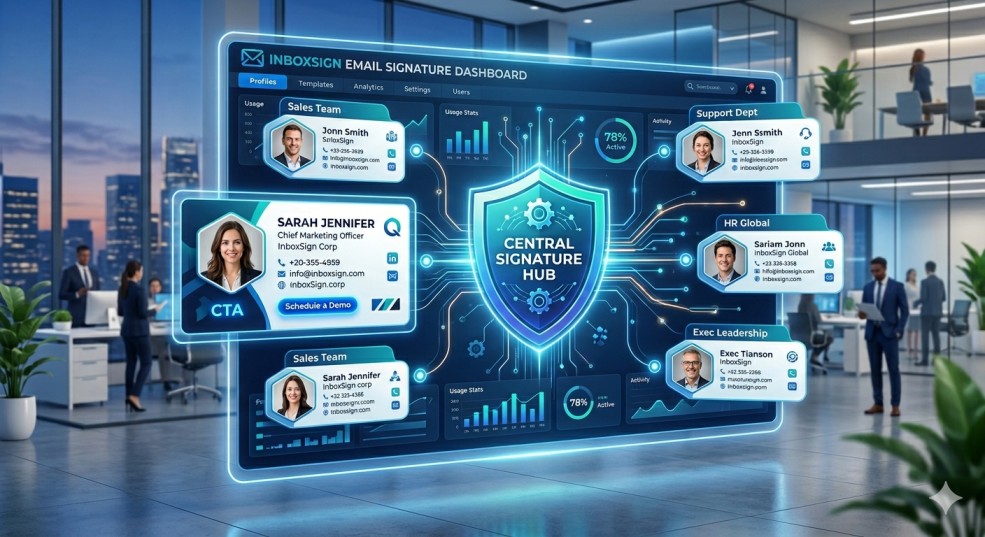
Quick Answer: What is corporate email signature management?
Corporate email signature management is the centralized control of employee email footers through a single dashboard or policy. Instead of each employee manually creating their own signature, a central admin creates a master template that preserves brand identity, ensures legal compliance, and automates updates for every member of the team.
What Corporate Email Signature Management Means
True management goes beyond just sending a "Copy and Paste" instruction to your team. It involves a technical framework that handles several moving parts:
- Master Templates: A single source of truth for design, colors, and layout.
- Role-Based Variations: Signatures that automatically adjust based on an employee's department (e.g., Sales getting a booking link, while HR gets a hiring banner).
- Control of Brand Assets: Ensuring logos and social icons are hosted on a reliable server so they don't appear as broken attachments.
- Legal Governance: Automatically appending mandatory disclaimers based on the sender's geographic location.
- Protected Fields: Locking the design while allowing employees to fill in their specific job title or direct phone line.
- Centralized Deployment: The ability to push updates to 500+ employees at once without ever asking them to open their mail settings.
Why It Matters for Growing Teams
For a startup of three people, manual updates take ten minutes. For an organization of 100, manual management is a recurring headache that leads to errors. Centralization is necessary for several reasons:
Brand Consistency
Every email sent by an employee is a brand impression. If those impressions are inconsistent, the brand feels disorganized. A managed system removes the "creative" changes employees often make to their fonts or colors.
Compliance Control
In many industries, including finance, legal, and healthcare, signatures must contain specific disclaimers. If an employee deletes this text, the company faces potential liability. Management ensures these disclaimers are always present and up to date.
Onboarding and Offboarding
When a new hire starts, their email signature should be the last thing they have to worry about. A managed system generates their signature the moment their email account is created. Conversely, it ensures former employees no longer represent the brand after they leave.
Reducing Technical Errors
Most people are not HTML experts. When employees try to design their own signatures, they often use oversized images or complex code that breaks on mobile devices. A controlled system uses "bulletproof" HTML that displays correctly across all major mail clients.
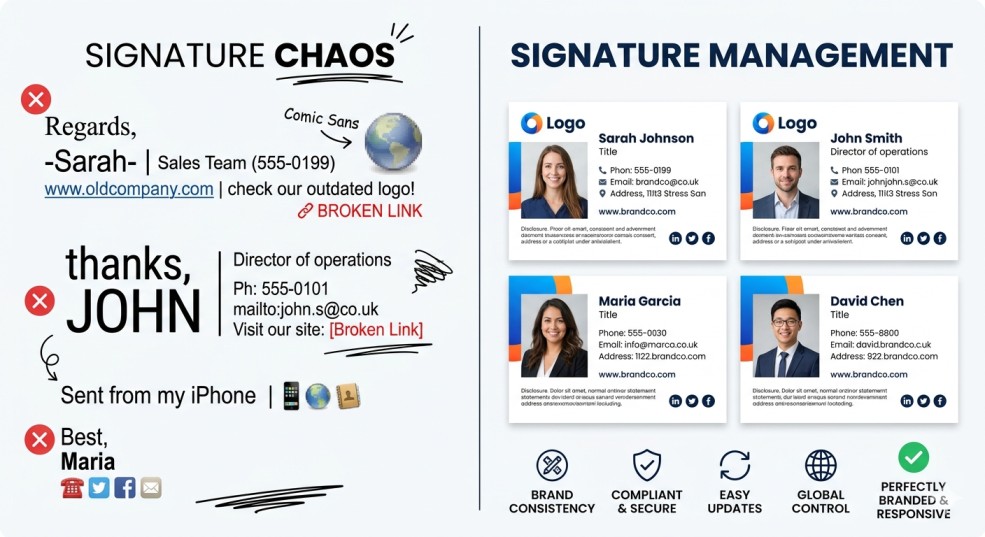
*Centralization ensures every employee reflects the same professional brand identity.*
Common Problems Teams Face
Without a clear strategy, most organizations fall into "Signature Chaos." Here are the most common signs that your current approach is failing:
- The "Attachment" Problem: Logos sent as attachments because the code is outdated.
- The "Old Logo" Syndrome: Half the team is still using a logo from three years ago.
- Inconsistent Titles: Some people call themselves "Sales Rep" while others use "Account Manager."
- Broken Formatting: Signatures that look perfect on Outlook but look like a mess on Gmail or iPhone.
- Outdated Banners: A "Happy Holidays" banner that is still running in July.
- Missing Information: Important team members forgetting to include their direct office extension.
Manual vs. Centralized vs. Automated Management
Choosing the right approach depends on your team size and technical resources.
| Approach | How it Works | Pros | Cons | Best For |
|---|---|---|---|---|
| Manual | Send a Word doc to team for copy/paste | Zero cost, no software | No control, 0% consistency | Teams < 5 |
| Centralized | A designer creates a file for IT to install | Better design quality | High IT manual workload | Teams 5-20 |
| Automated | Software syncs with Google/Microsoft APIs | 100% control, auto-updates | Monthly software cost | Teams 20+ |
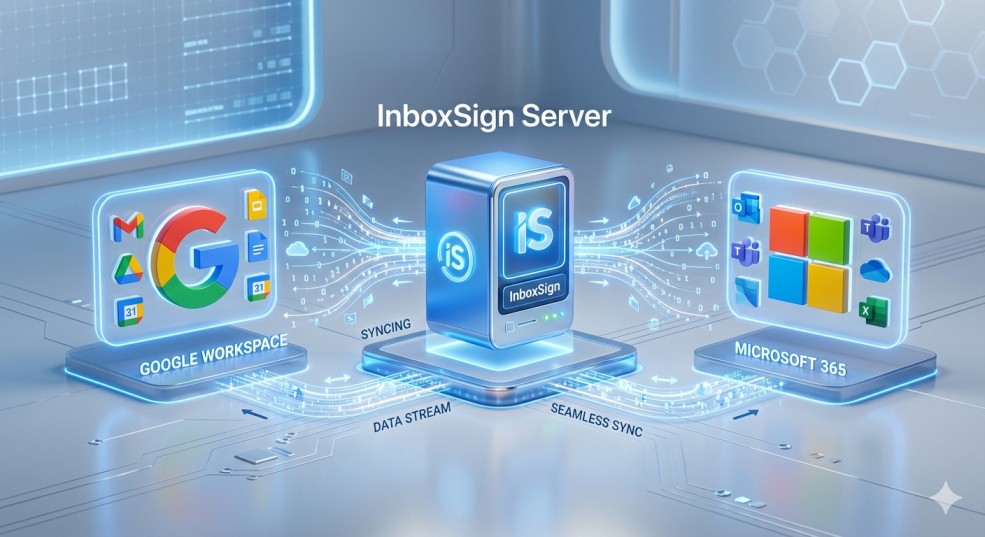
*Automated systems push updates directly to employee accounts using secure API integrations.*
What a Good System Should Include
If you are evaluating how to manage your team, use this checklist for your implementation:
- Locked Master Template: The layout should not be editable by the end user.
- Mapping to Directory Data: Automatically pulling name, title, and phone from Google Workspace or Microsoft 365.
- Hosted Assets: Images must be served over HTTPS to avoid security warnings.
- Mobile-Friendly Design: Narrow layouts (under 400px) to prevent horizontal scrolling on phones.
- Preview Tool: The ability to see what an employee's signature looks like before deploying it.
- Update Scheduling: Setting banners to expire automatically after a campaign ends.
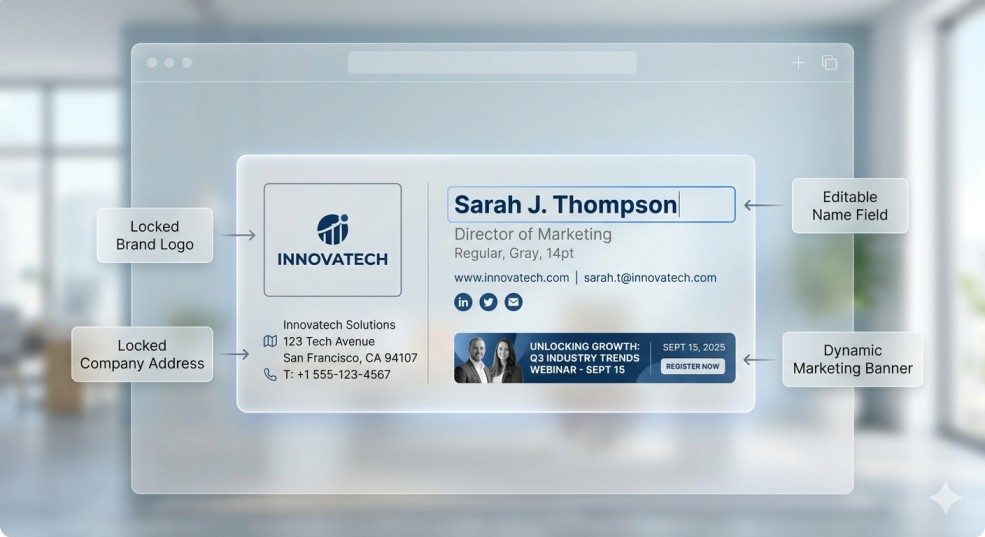
*Standardized layouts prevent formatting errors and maintain departmental alignment.*
How to Design a Corporate Template
Design for a team is different from design for an individual. A corporate template must be prepared for the "Longest Name Rule"—it must look good even if an employee has a three-part last name and a long job title.
- Simple Layout: Use a vertical or simple 2-column layout. Avoid complex grids that break in Outlook.
- Prioritize Text: Use actual text for contact info, not images. Images are not searchable and are often blocked.
- Visual Hierarchy: Make the name bold and slightly larger, but keep other details readable at 12px or 13px.
- Link Management: Limit social media icons to the top 2 or 3 platforms. Too many icons create a cluttered footer.
- Handling Empty Fields: Ensure the design doesn't have "empty gaps" if an employee doesn't have a mobile phone number.
Department-Specific Variations
Standardization doesn't mean every signature is identical. It means the brand identity is the same, but the call to action changes based on the team's objective:
- Sales Team: Focus on booking meetings. Include a clear "Schedule a Demo" button.
- Customer Support: Focus on help. Include a link to the Knowledge Base or Ticket System.
- HR & Recruiting: Focus on growth. Add a "We're Hiring" banner pointing to your careers page.
- Marketing: Focus on content. Highlight the latest whitepaper or upcoming webinar.
- Executive Leadership: Focus on simplicity. A minimalist approach that emphasizes authority.
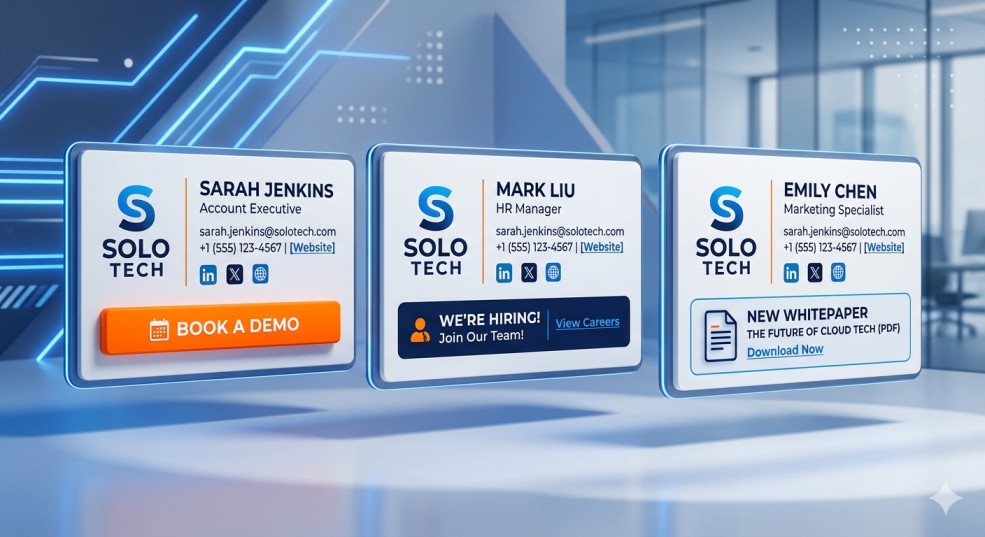
*Tailor calls-to-action based on team objectives while preserving core branding.*
The Employee Email Signature Policy
A written policy is as important as the design itself. It sets the rules for the road. Your policy should cover:
- Ownership: Who has the final say on the design (usually Marketing).
- Platform Support: Which mail apps the company officially supports.
- Personalization: What employees are allowed to change (profile photo) and what is forbidden (life quotes, personal social links).
- Banners: How often marketing banners will be updated and who is responsible for the creative.
- Font Standards: Explicitly naming the web-safe fonts used to ensure consistency across Windows and Mac.
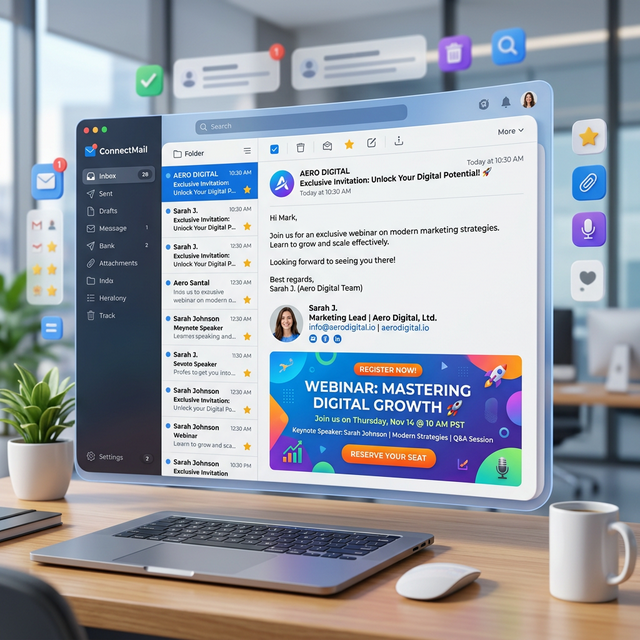
*Managed banners allow marketing teams to push seasonal campaigns globally in seconds.*
Step-by-Step Rollout Plan
Implementing corporate email signature management should follow a structured process to avoid confusing your staff.
1. The Audit
Review what the team is currently using. You will likely find 10+ different versions of the signature. Use this to show stakeholders why a new system is needed.
2. Define Standards
Determine which fields are mandatory (Name, Title, Email) and which are optional (Mobile, LinkedIn).
3. Create the Master Template
Build a template that works for everyone. Test it with the longest names and titles in your directory to ensure the layout holds up.
4. Technical Testing
Send test emails to Gmail, Outlook (Desktop and Web), and Apple Mail. Check both Light and Dark mode appearance. Use a Gmail setup guide or Outlook setup guide to verify platform-specific quirks.
5. Pilot Deployment
Deploy the new signature to a small "beta" group (like the Marketing team) to catch any bugs before the global rollout.
6. Full Training and Rollout
Send a company-wide announcement. If you use automation, tell employees the update is happening in the background. If manual, provide a clear "How-to" document.
7. Periodic Review
Schedule a quarterly check-in to update logo assets, refresh marketing banners, and ensure new hires are being added correctly.
Gmail and Outlook Considerations
These two platforms handle HTML very differently. Outlook for Windows uses the Microsoft Word rendering engine, which is notoriously difficult for HTML mail.
- Gmail: Generally follows modern standards, but can strip CSS from the 'head' section. Always use inline styles.
- Outlook: Does not support background images or complex padding well. Stick to table-based layouts for consistent spacing.
- Mobile: Both platforms will often resize images or text. Testing on mobile is non-negotiable for a professional team.
Common Management Mistakes
- Using a Single Image: Never make the whole signature one image. It will look blurry, won't be clickable in sections, and triggers spam filters.
- Overcrowding: Trying to include five phone numbers and ten social links. Keep it to the essentials.
- Ignoring Dark Mode: White backgrounds that turn into glowing boxes when the recipient is using a dark theme.
- No Mobile Testing: Assuming that because it looks good on a 27-inch monitor, it will look good on a 5-inch phone screen.
- Forgetting Internal Emails: Forcing people to see a massive branded footer every time they get an internal "thanks" email. Use a shorter version for internal replies.
Best Practices for Ongoing Management
Management is not a "one and done" task. To maintain a high standard:
- Host Images Properly: Use a Content Delivery Network (CDN) to ensure fast loading and 100% uptime.
- Version Control: Keep a record of your signature HTML so you can revert if a change breaks the layout.
- Documentation: Maintain a simple guide for the IT department on how to update user fields or add new departments.
- Asset Control: Ensure only the current logo is available for use. Delete old versions from your hosting to prevent them from accidentally resurfacing.
Corporate Implementation Checklist
- Technical Audit: Do we know which mail clients our team uses?
- Brand Guide: Is the color palette and logo approved by the Brand manager?
- Directory Sync: Does our software have permission to read user data from Google/Microsoft?
- Mobile Validation: Has the template been tested on an iPhone and Android device?
- Legal Review: Is the mandatory disclaimer included for all regulated regions?
- Rollout Plan: Is the company-wide email prepared to explain the change?
- Internal Guide: Is there a "minimalist" version for internal replies?
Frequently Asked Questions
Is it better to use a tool or do it manually?
For teams under 10, manual is fine. For anything larger, the time wasted fixing broken signatures or updating logos manually costs more than the software.
How do we handle different office locations?
A managed system allows you to create "smart fields" that automatically insert the correct office address based on the employee's location in your directory.
Should we include employee photos?
Photos build trust and "humanize" the brand. However, they must be professional headshots with consistent backgrounds. If you can't ensure high-quality photos for everyone, it is better to skip them.
What is the best font for professional signatures?
Use web-safe fonts like Arial, Helvetica, or Verdana. While custom fonts might look better, they often fail to load on the recipient's machine, causing the signature to fall back to a random font like Times New Roman.
How do we stop employees from changing their font?
The only way to 100% stop it is via an automated system that pushes the signature directly to the mail settings. In a manual environment, you must rely on a company policy and periodic audits.
Does a long signature hurt email deliverability?
Yes. Large images and excessive code can trigger spam filters. A clean, table-based layout with hosted images is the safest way to ensure your emails reach the inbox.
How often should we update our signatures?
Your core brand details should stay static, but marketing banners can change monthly or quarterly depending on your campaign schedule.
What is the ideal width for a team signature?
Aim for 320px to 400px. This ensures the signature never forces a recipient to scroll horizontally, even on older mobile devices.
Conclusion
Standardizing your company's email signatures is a sign of operational maturity. It clarifies your branding, secures your compliance, and professionalizes your outward-facing communication. While it requires an initial investment in design and technical setup, the long-term benefit of a unified team identity far outweighs the effort.
Managing signatures manually is a losing battle as you scale. By implementing a centralized system and a clear policy, you turn a potential branding mess into a consistent, professional asset for the business.