

Quick Answer: How to Add Email Signature in Yahoo Mail
To add a signature in Yahoo Mail, follow these 6 rapid steps:
- Open Yahoo Mail and click the Gear Icon (Settings).
- Click More Settings at the bottom of the sidebar.
- Navigate to Writing email in the left menu.
- Find your account and toggle the Signature switch to ON.
- Paste your signature into the text area.
- Click Save at the bottom of the column.
Where to Find Signature Settings in Yahoo
The Yahoo Mail interface hides advanced configuration under a secondary menu. Most users miss the "More Settings" button, which is essential for access.
From your inbox, look at the top-right corner for the Gear icon. Clicking this reveals the "Quick settings" panel, but you must scroll to the bottom of that list and select "More Settings" to reach the necessary configuration dashboard.
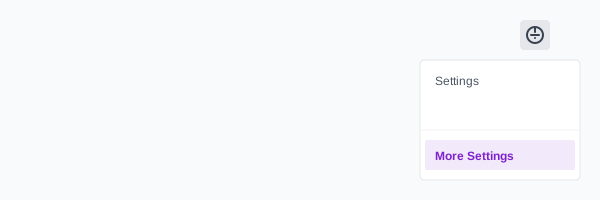
*Caption: Access Yahoo Mail settings from the top-right menu.*
Step-by-Step: How to Add Email Signature in Yahoo Mail (Desktop)
Step 1: Open 'Writing Email' Settings
Once you are in the "More Settings" tab, look at the left sidebar. Locate and click on "Writing email". This panel centralizes your identity, default fonts, and signature options.
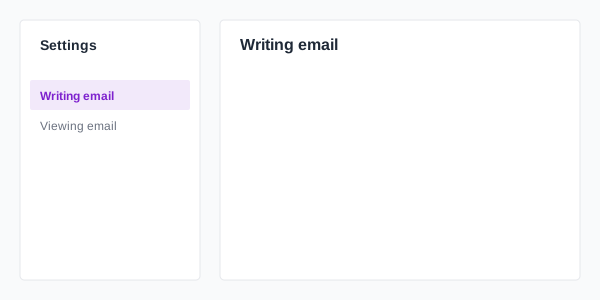
*Caption: Navigate to the ‘Writing email’ tab to manage your professional identity.*
Step 2: Enable the Signature Toggle
In the central column, locate the Signature section. Find the email address you wish to edit and click the toggle switch to the On position. Yahoo allows you to set unique signatures for every alias you manage.
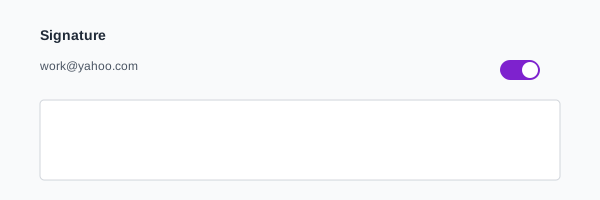
*Caption: Enabling the signature functionality is a mandatory first step.*
Step 3: Add Your Signature Content
Click inside the text area below the toggle. You can type your name and title here or, for a branded look, paste a formatted signature from a browser.
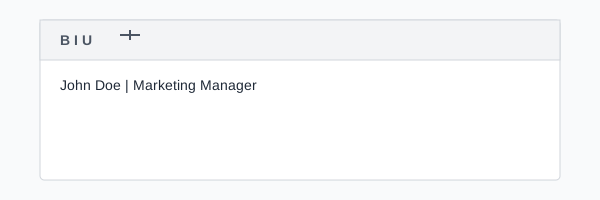
*Caption: Adding your content to the Yahoo signature editor.*
Step 4: Save and Test
Yahoo does NOT auto-save signature changes. You must scroll to the very bottom of the column and click the blue Save button. To test, open a "Compose" window.
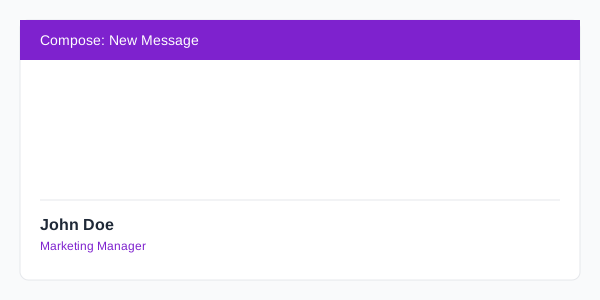
*Caption: Verifying your final signature layout in a live Yahoo compose window.*
HTML Email Signature in Yahoo Mail: The Workaround
Yahoo Mail does not offer a "View Source" or HTML editor button. This means you cannot paste raw code (like <div>...</div>).
The Workaround:
- Open your HTML signature file in a web browser (Chrome or Safari).
- Highlight and copy the visual rendering of the signature (Ctrl+C).
- Paste it directly into the Yahoo signature box.
Yahoo will interpret the HTML and CSS styling automatically during the paste process, retaining your colors, tables, and social icons.
[!TIP]
Instead of manually formatting HTML, use an email signature generator that handles Yahoo's specific code stripping automatically.
Adding Images or Logos to Your Yahoo Email Signature
Images are the primary failure point for Yahoo users. Many logos show up as "broken" icons or massive attachments.
To add a logo correctly:
- Hosted Images (Recommended): Use a hosted HTTPS URL. Paste the image from its URL into the editor. This keeps the email light and ensures delivery.
- Direct Upload: Yahoo allows you to drag and drop, but this increases the chance of the image being flagged as an attachment.
*Caption: Inserting a branded logo ensures visual trust and authority.*
Yahoo Mail Mobile Signature Setup (iPhone & Android)
The Yahoo Mail app (iOS and Android) handles signatures differently than the desktop version. Crucially, mobile signatures in the official app only support plain text.
If you set up a professional HTML signature on desktop, it will NOT sync to the mobile app. You must configure the mobile signature separately in the app's settings menu. Because HTML is restricted on mobile, keep your mobile signature minimal (e.g., Name | Title | Phone).
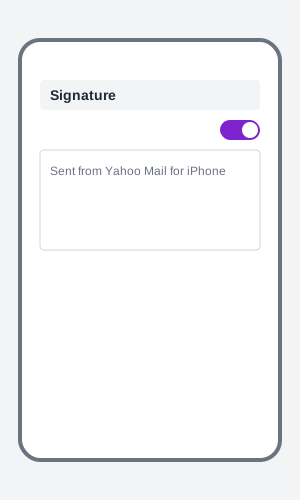
*Caption: Mobile signatures in Yahoo Mail are lightweight and text-focused.*
Common Yahoo Signature Issues (Why Your Signature is Not Working)
- Issue 1: Formatting Lost: If your signature looks like a single block of text, ensure you have Rich Text Mode enabled in your composition settings.
- Issue 2: Images Not Showing: Yahoo blocks images from non-secure servers. Ensure your logo is hosted on an HTTPS URL.
- Issue 3: Signature Not Appearing: Double-check that you have clicked Save at the bottom of the settings panel. Also, ensure you have enabled the signature for the specific alias (email address) you are sending from.
Best Practices for Yahoo Signatures
- Keep it Simple: Avoid complex nested tables or advanced CSS animations.
- Limit Width to 600px: Ensures the signature doesn't force horizontal scrolling on small reading panes.
- Use Web-Safe Fonts: Stick to Arial, Verdana, or Georgia to prevent Yahoo from overriding your font choice.
- Minimal Code: Yahoo can be aggressive with stripping. Keep your signature code under 5KB for maximum reliability.
The Yahoo Signature Setup Checklist
- Signature Toggle: Is the switch set to ON for your specific account?
- Save Button: Did you scroll to the bottom and click 'Save'?
- Links Working: Are your website and social links clickable in a test email?
- Mobile Setup: Have you configured your mobile signature?
- HTTPS verification: Are all hosted images using a secure SSL link?
Create a Professional Impression in Seconds
Managing a branded presence in Yahoo shouldn't be a technical chore. By using a specialized Yahoo email signature generator, you eliminate the risk of broken images and collapsed layouts.
Turn every email sent from Yahoo into a high-converting touchpoint. Build your professional Yahoo email signature with InboxSign today.
*Technical and system review completed for 2026 Yahoo rendering standards.*