
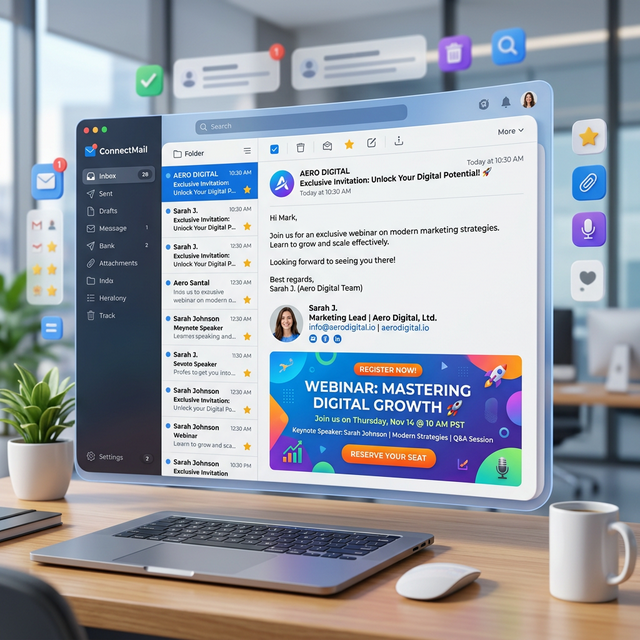
Quick Answer: What is an Email Signature Banner?
An email signature banner is a graphical marketing element placed at the bottom of a professional email footer to drive traffic to specific content or campaigns.
- Why they work: They provide high-visibility impressions without manual effort.
- What they promote: Blog posts, webinars, case studies, lead magnets, and hiring.
- When to use: Use them for time-sensitive launches or evergreen high-value content.
What Exactly is an Email Signature Banner?
An email signature banner is more than just a decorative image; it is a tactical "slot" in your digital communication. It acts as a visual anchor that draws the eye toward a specific Call to Action (CTA) after the recipient finishes reading your message.
A professional banner typically consists of a high-quality graphic, a benefit-driven headline, and a clear "button-style" area that encourages a click. It is positioned as the final element of your signature, ensuring it stays top-of-mind without interrupting the flow of the conversation.
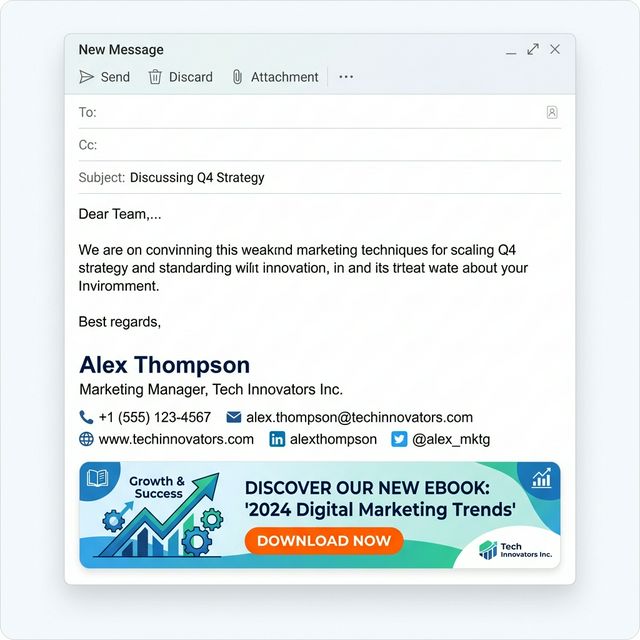
*Caption: Email signature banner placed below contact details ensures your marketing goal is the final impression.*
The Psychology: Why Signature Banners Work
Marketing success is often a game of repeated exposure and contextual relevance. Email signature banners excel at both:
- High Visibility: Unlike social media posts that disappear in seconds, a banner is present in every reply, follow-up, and internal thread you send.
- Repeated Exposure: For clients you communicate with daily, the banner acts as a "drip" campaign, building brand awareness over time until they are ready to click.
- Contextual Relevance: If you are a sales representative talking to a prospect, a banner promoting a "Case Study" provides the exact proof they need at the right moment.
- Low Friction: The recipient is already in their inbox. Clicking a banner doesn't require them to switch platforms or search for information; it is right in front of them.
7 Strategic Ways to Use Signature Banners
To move beyond "generic" promotion, you must treat each banner as a specific campaign. Here are seven tactical ways to use this space:
1. Promote Your Latest Blog Post
Don't just share a link; share a benefit. Instead of "Read our new post," use a headline that solves a problem. "7 Ways to Reduce Churn" is far more clickable than "Our New Newsletter."
- What: A thumbnail and headline for your top-performing blog content.
- Why: Drives passive traffic and establishes you as a thought leader.
- When: Rotate this every two weeks to keep content fresh for recurring recipients.
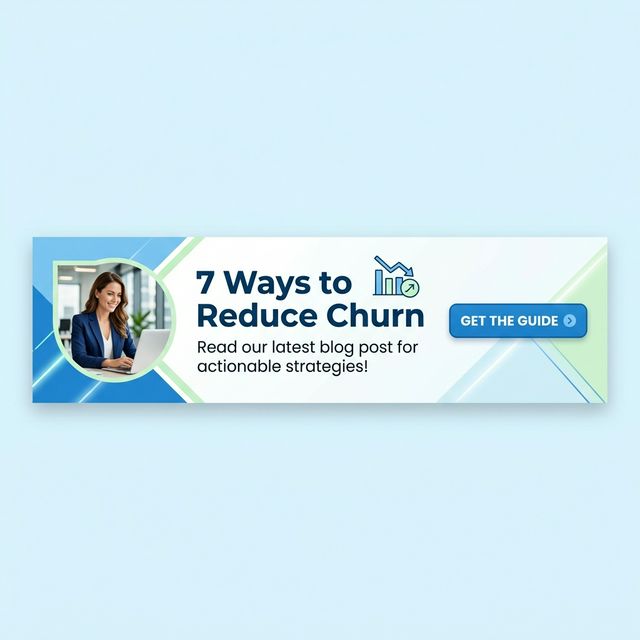
*Caption: Banner promoting a blog post with a clear benefit-driven headline.*
2. Drive Webinar & Event Attendance
Signature banners are the kings of event promotion because they can include dates and "Save Your Seat" CTAs.
- What: A banner with the event name, date, and a registration button.
- Why: High-touch communication is the best place to remind people of upcoming live sessions.
- When: Use this starting 3 weeks before the event and remove it immediately after it ends.
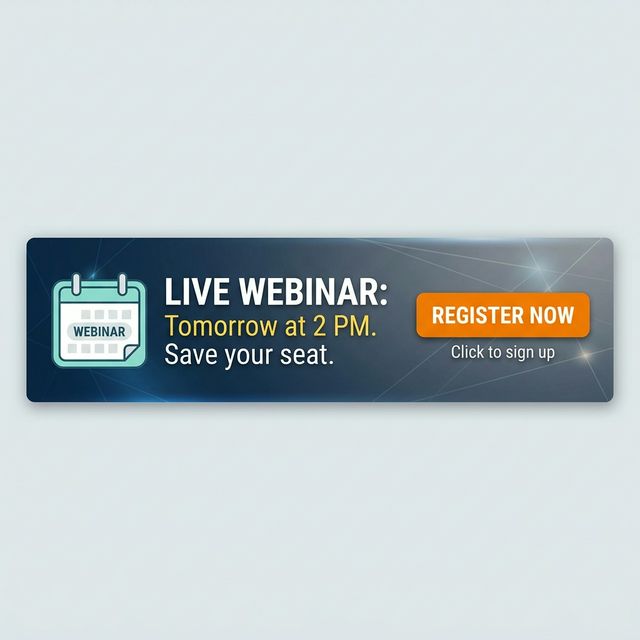
*Caption: Webinar promotion banner inside email signature creates urgency.*
3. Showcase New Case Studies
Nothing builds trust like the success of others. If you just helped a client achieve a 300% ROI, shout it from your signature.
- What: Success metrics and a client logo.
- Why: It provides immediate social proof during sales conversations.
- When: Use this for cold outreach or when speaking with late-stage prospects.

*Caption: Case study banner builds trust and credibility with social proof.*
4. Announce Product Feature Launches
Keep your current clients informed about your latest technology without cluttering their main inbox with additional "Blast" emails.
- What: A feature highlight image and a "Learn More" link.
- Why: Increases product adoption for existing users.
- When: Use this during a 30-day "launch window" for any major update.
5. Promote Lead Magnets (Ebooks & Guides)
If you have high-value gated content, use your signature to drive "Always-On" lead generation.
- What: A visual of the ebook cover and a promise of value.
- Why: Every email becomes a potential lead capture point.
- When: Ideal for evergreen content that remains relevant year-round.
6. Hiring & Recruitment Campaigns
Your signature is seen by industry professionals, partners, and prospects—often the exact people who might fit your open roles.
- What: "We're Hiring!" with a link to your careers page.
- Why: Lower cost-per-hire by reaching people inside your professional network.
- When: Use this when you have critical gaps in your team.
7. Seasonal & Holiday Campaigns
Link your promotion with the time of year to create a sense of timeliness. This is best paired with a seasonal signature guide to ensure your branding matches the holiday spirit.
- What: Holiday discounts, year-end reviews, or "Best of 2026" content.
- Why: Capitalizes on higher general purchase intent during peak seasons.
- When: Q4 is the prime time for seasonal banner rotations.
Banner Design Best Practices (2026 Standards)
A poorly designed banner reflects poorly on your brand. Follow these technical and aesthetic standards to ensure your banner converts:
- Width & Height: Stick to a 600px maximum width. This ensures the banner doesn't force horizontal scrolling on mobile. The height should be between 100px and 200px to avoid pushing the email thread too far down.
- The "Squint Test": If you squint your eyes, the most important word (e.g., "Webinar") or the button should still be clear.
- CTA Placement: Place your call-to-action button on the right side. Most recipients scan in an "F" pattern, and the right side is the natural "stopping point" for their gaze.
- Minimal Text: You have roughly 2 seconds to grab attention. Limit your text to under 10 words.
- DPI Optimization: Export your banner at 72 or 96 DPI. Outlook handles high-DPI images incorrectly, often scaling them by 125% or 150%, which can break your layout.
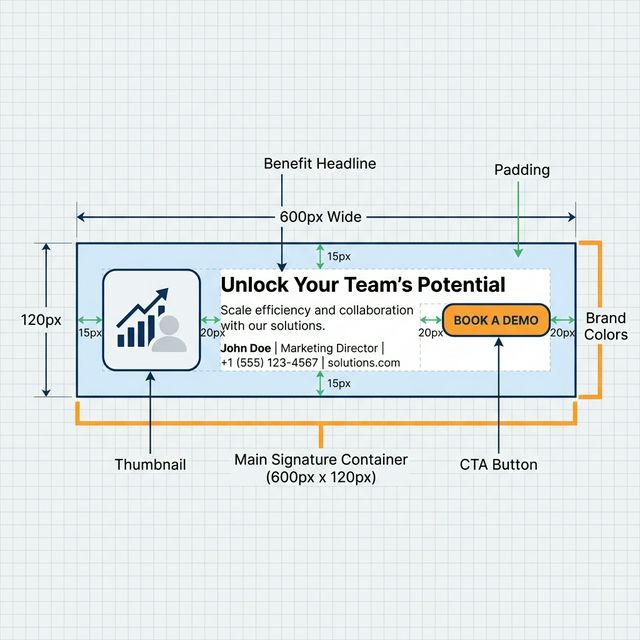
*Caption: Structure of a high-converting banner design with labeled elements.*
Correct Placement in Your Signature
Positioning is critical. Placing a banner at the very top of a signature is distracting and hides your name. The golden rule of signature hierarchy is:
- Name & Title (Identity)
- Company & Logo (Affiliation)
- Contact Details & Icons (Utility)
- Marketing Banner (Inspiration)
- Legal Disclaimer (Compliance)
[!TIP]
Instead of manually updating banners, use InboxSign to manage and rotate campaigns easily. This ensures every team member stays on-brand without having to edit their settings manually.
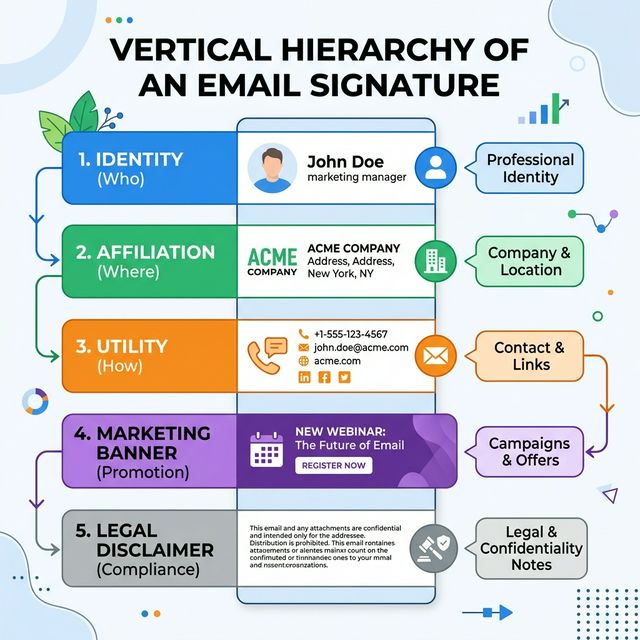
*Caption: Correct placement of banner in email signature ensures the marketing goal follows your contact info.*
How to Create and Deploy a Banner (Step-by-Step)
Follow this 4-step system to move from idea to live promotion:
- Define Your Goal: What do you want them to do? Book a meeting? Read a blog? Select ONE goal per banner.
- Create the Visual: Use a tool like Canva or Figma, or use a signature generator with built-in banner templates.
- Add Tracking: Use our UTM tracking guide to generate a link that GA4 can understand.
- Insert Into Signature: Upload the banner to your signature settings. If you use a manual setup, ensure your image is hosted on an HTTPS server to prevent "Broken Image" icons.
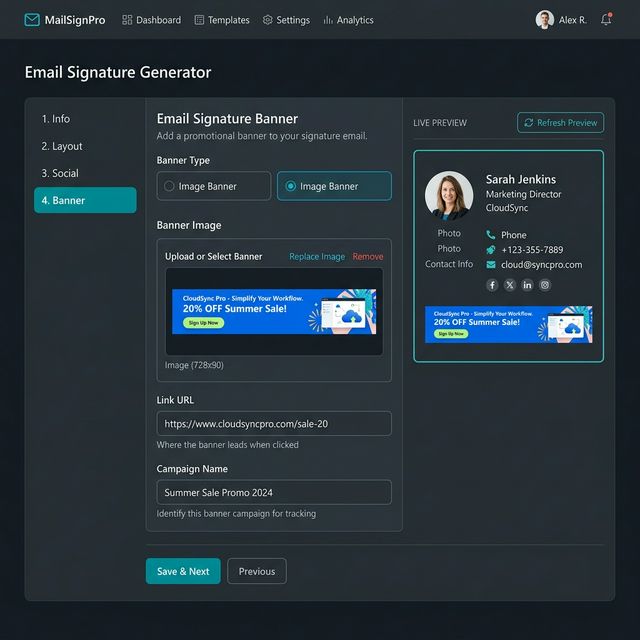
*Caption: Adding a banner using a signature generator simplifies the technical setup.*
How to Track Banner Performance
A marketing channel is only as good as its data. Unlike "Direct Traffic," clicks from your signature can be perfectly attributed if you use UTM parameters.
By tagging your banner link with utm_source=email and utm_campaign=banner_name, you can see:
- Exactly how many leads your signature generated.
- Which banner designs are outperforming others.
- Which specific team members are driving the most traffic.
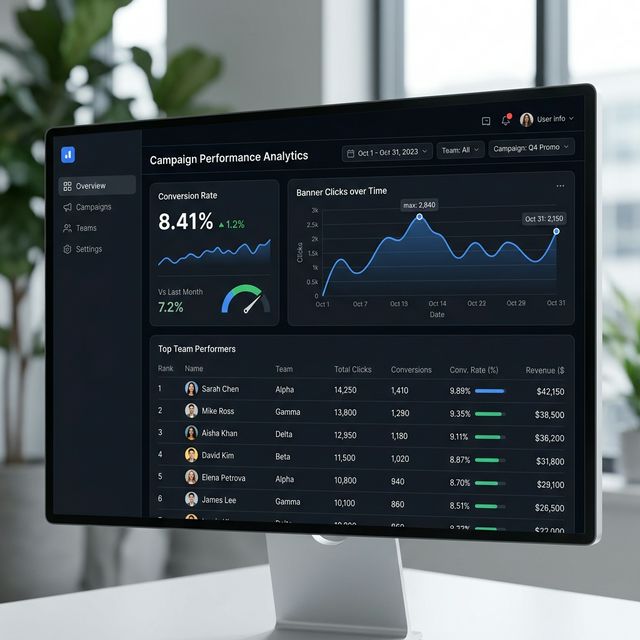
*Caption: Tracking clicks from signature banners ensures your marketing is data-driven.*
The Professional Banner Checklist
- Mobile Responsive: Is the width 600px or less?
- Dark Mode Friendly: Is the background transparent or the colors high-contrast?
- Deliverability Check: Is the file size under 100KB?
- The Link Works: Does it open a new tab and point to the right destination?
- UTM Tags: Is the tracking link active and correct?
- Trust verified: Ensure your banner follows signature best practices for professional etiquette.
FAQ: Maximizing Your Banner ROI
How often should I rotate my banners?
We recommend changing your banner at least once a month or whenever a holiday season begins. Fresh visuals prevent "banner blindness" from recurring recipients.
Do banners affect email deliverability?
If you use a giant 5MB image, yes. However, if your banner is optimized (under 100KB) and hosted on a fast server, it has no negative impact on spam filters or inbox delivery.
How many banners should I include?
Only one. Adding multiple banners looks like spam and decreases the click-through rate of your primary goal. Focus on one clear message.
Can I use animated GIFs in a banner?
Yes, but keep it subtle. A 2-3 frame animation that highlights a button can increase engagement, but a fast, distracting GIF will make you look unprofessional.
Turn Every Email Into a Sales Opportunity
Stop leaving marketing impressions on the table. Every email you send is a chance to move a prospect further down the funnel or educate a client on your new features.
Turn every email into a content promotion channel by adding a high-converting banner using InboxSign today.
Refer to our Gmail Setup Guide or Outlook tutorial to learn how to install your new, high-performance banner correctly.