

Quick Answer: Adding a Signature to Thunderbird
To add a professional signature in Thunderbird, follow these three core steps:
- Navigate: Right-click your account name > Settings.
- Enable: Check the "Use HTML" box in the signature area.
- Paste: Insert your HTML signature code and close the tab to save.
Where Signature Settings Are in Thunderbird
Unlike Gmail or Outlook Web, which use a global settings menu, Thunderbird manages signatures on a per-account basis. This is a powerful feature for professionals managing multiple identities (e.g., Sales vs. Support).
To find your settings, look at the left sidebar where your inbox and folders are listed. Right-click the Account Name (your email address) and click Settings. This will open a dedicated tab specifically for that account’s configuration.
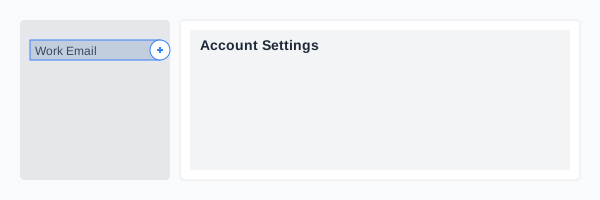
*Caption: Accessing account-specific settings in the Thunderbird sidebar.*
Step-by-Step Thunderbird Setup (Core Guide)
Step 1: Open Account Settings
Once you have right-clicked your account, you will be in the Account Settings tab. The "Signature text" area is visible immediately on the main panel.
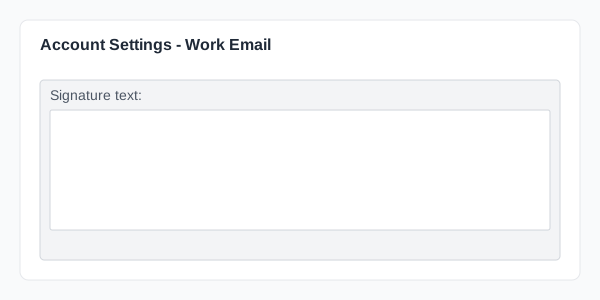
*Caption: The primary signature configuration area within Thunderbird Account Settings.*
Step 2: Locate Signature Text Box
The "Signature text" box is where you define your footer. If you are using plain text, you can type directly here. However, for a professional look, you will need the HTML capability.
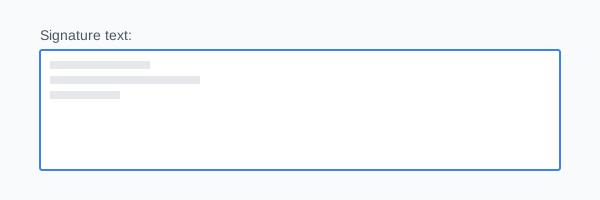
*Caption: The editable signature field where your content or code is placed.*
Step 3: Enable HTML Mode
This is the most critical step. If you are pasting a branded signature from a generator, you must check the box that says "Use HTML". If you skip this, Thunderbird will display your signature as raw code (e.g., <div>John Doe</div>).

*Caption: Enabling HTML mode is mandatory for styled signatures and images.*
Step 4: Paste Your Signature
Copy your signature from the InboxSign signature generator and paste the code directly into the box. You don't need to know how to code; our generator handles the table-based layout needed for Thunderbird’s rendering engine.
[!TIP]
Instead of manually formatting HTML, use an email signature generator to create a Thunderbird-ready signature that works without breaking or losing its styling.
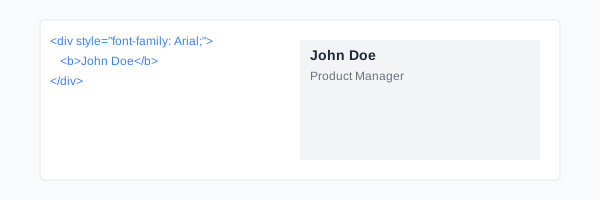
*Caption: Example of HTML code correctly pasted into the Thunderbird editor.*
Step 5: Preview Signature
Close the settings tab (Thunderbird saves automatically). Open a new email (Ctrl+N) to verify that your signature appears at the bottom.
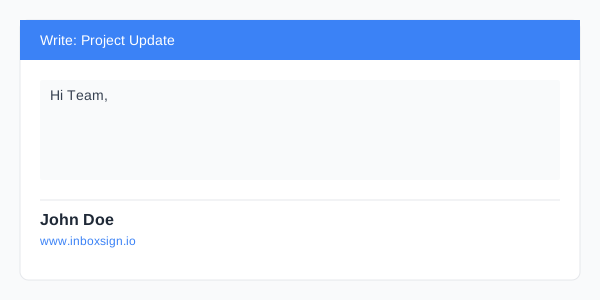
*Caption: Verifying the final signature layout in a live compose window.*
HTML vs. Plain Text Signatures
- Plain Text: Safe, lightweight, and guaranteed to load every time. However, it lacks branding, clickable social icons, and professional trust signals.
- HTML: Allows for vibrant branding, professional layouts (using tables), and clickable CTAs. Under Thunderbird, HTML signatures require the "Use HTML" toggle to be active.
Power User: Using an External HTML File
One of Thunderbird's best "Pro" features is the ability to link to a file on your computer rather than pasting code internally.
How to set it up:
Check the box "Attach the signature from a file instead". Browse your computer and select your saved .html file.
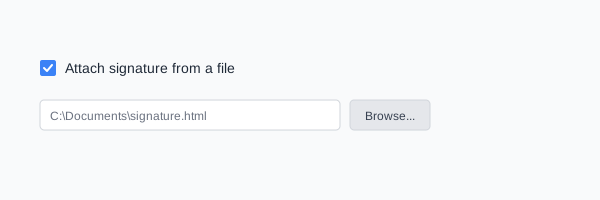
*Caption: Using an external HTML file is the most robust way to manage complex signatures.*
When to Use External Files:
- Company-Wide Control: If your IT team updates a file on a shared drive, everyone's signature updates automatically.
- Agencies: If you manage multiple clients, keeping HTML files separate makes switching easy.
- Large Code Blocks: If your signature is very long, external files prevent Thunderbird’s internal editor from lagging.
Troubleshooting: Fixing Common Thunderbird Issues
Issue 1: Signature appears above or below the quote
By default, Thunderbird may place your signature at the very bottom of an email thread. To fix this:
- Go to Account Settings > Composition & Addressing.
- Locate the Signature dropdown.
- Select "place my signature below my reply (above the quote)".
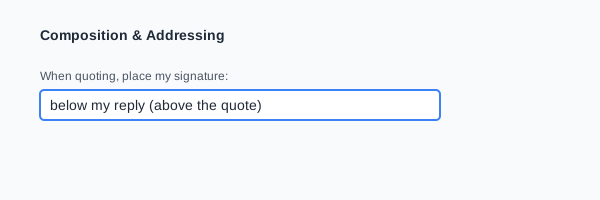
*Caption: Re-centering your signature for better readability in long threads.*
Issue 2: Images are not loading
Thunderbird often blocks "Remote Content" for security. If your logo is missing, ensure:
- Your images are hosted on a secure HTTPS server.
- The recipient hasn't disabled image loading.
- You use hosted email signature images rather than local ones to prevent them from showing as "broken" icons.
Issue 3: Formatting is broken
If your columns are collapsing, you are likely using modern CSS (Flexbox/Grid) which Thunderbird does not support perfectly.
The Fix: Always use HTML Tables for your layout. Our HTML signature guide covers the technical background of table-based design.
Best Practices for Thunderbird Users
- Use Table Layouts: The only way to ensure 2-column consistency.
- Keep Width Under 600px: Prevents horizontal scrolling on narrow reading panes.
- Hosted Images Only: Reduces email size and avoids "attachment bloat."
- Match Mobile: Even if you use Thunderbird on desktop, remember to check how it looks on mobile. See our iPhone guide for mobile-specific tips.
The Thunderbird Signature Checklist
- HTML Enabled: Is the "Use HTML" box checked?
- Links Tested: Are social icons and website links clickable?
- Images Hosted: Are you using secure HTTPS URLs for all logos?
- Placement Verified: Is the signature appearing above the quote in replies?
- Size Optimized: Is your overall signature size under 100KB?
Professionalize Your Thunderbird Impression
Setting up a robust Thunderbird email signature is more than just a setup task—it's a commitment to professional consistency across every account you manage. Create a professional, fully compatible footer using the Thunderbird email signature generator and stop fighting with broken HTML formatting.
*Technical and system review completed for 2026 Mozilla standards.*