
Quick Answer: How to Remove "Sent from my iPhone"
Follow these 5 steps to professionalize your mobile identity:
- Open Settings on your iPhone
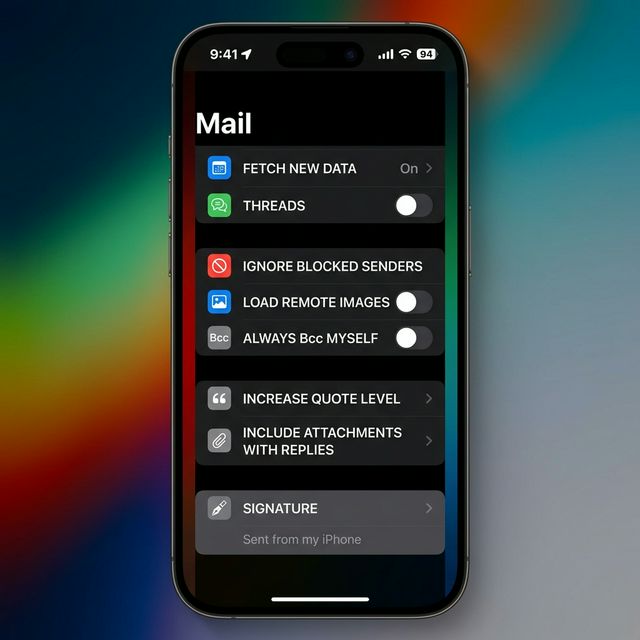
- Tap Mail
- Scroll to Signature
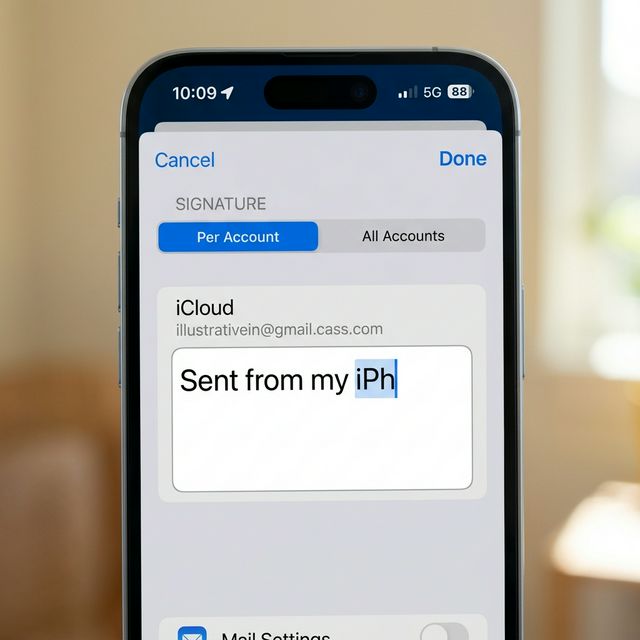
- Delete "Sent from my iPhone"
- Add your new signature
Why "Sent from my iPhone" Hurts Your Professional Image
While originally a clever marketing move by Apple, leaving this default tag in your professional communication carries hidden costs in 2026:
- Generic Branding: It tells the recipient you haven't taken the time to personalize your professional identity.
- Not Branded: You are essentially providing free advertising for Apple instead of promoting your own company or services.
- Wasted Opportunity: Every reply is a chance to share your job title, direct phone number, or a link to your website.
Replacing this generic placeholder with a professional mobile identity signals that you are attentive, organized, and brand-conscious, even when you are on the move.
Should You Remove It? The B2B vs. Personal Difference
Deciding whether to keep or remove this tag depends on your communication context:
- Sales & B2B Context: In a sales environment, "Sent from my iPhone" can suggest you are "too busy" or rushing. A custom signature suggests stability and professionalism.
- Internal vs. External: While a generic tag is okay for quick internal team chats, it should always be replaced for client-facing emails.
- The "Typos" Excuse: Some believe the tag excuses spelling mistakes. In truth, a professional signature with a "Pardon the brevity" disclaimer is far more effective.
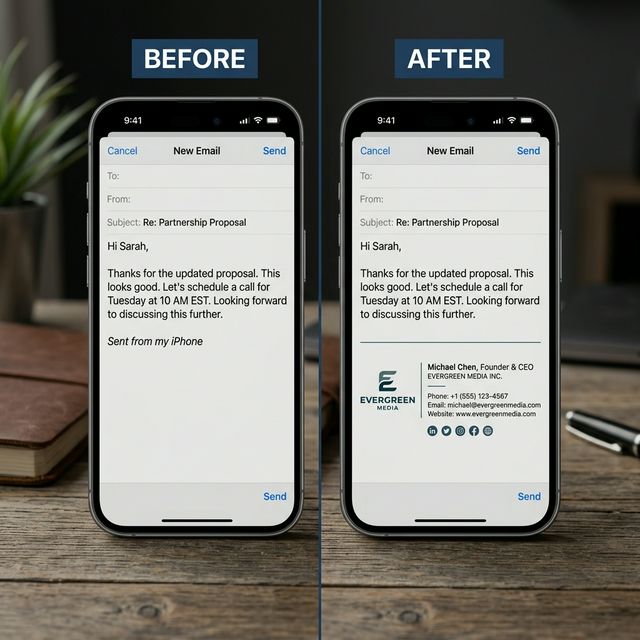
*Replace Apple's default message with your own professional identity*
Best Mobile Email Signature Examples
If you aren't sure what to use instead of the default text, try these clean, mobile-optimized alternatives:
1. The Minimalist (Text-only)
John Doe | Senior Manager
Sent from mobile
2. The Professional (with links)
John Doe | Company Name
[Your Phone Number] | [Website Link]
3. The Soft Disclosure
John Doe
*Pardon the brevity, sent from the field.*
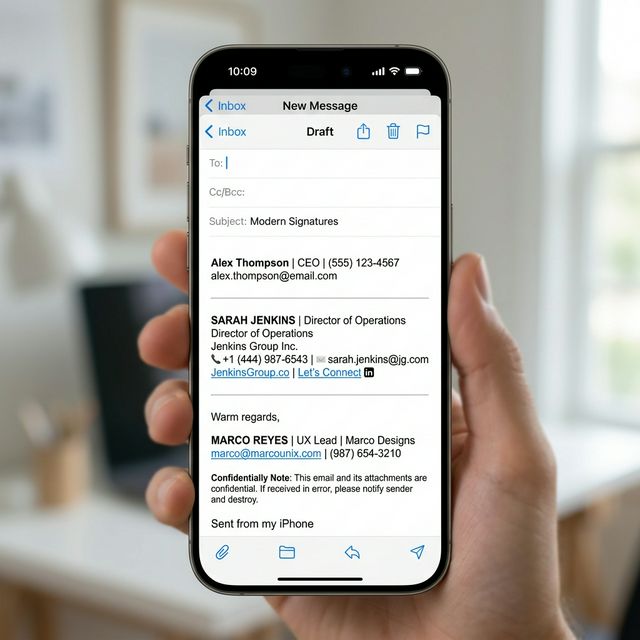
*Examples of clean, high-impact mobile email signature styles*
How to Remove "Sent from my iPhone" Step-by-Step
Follow these detailed steps, tested across iOS 16, 17, and the latest Mail app environments, to clear your signature settings:
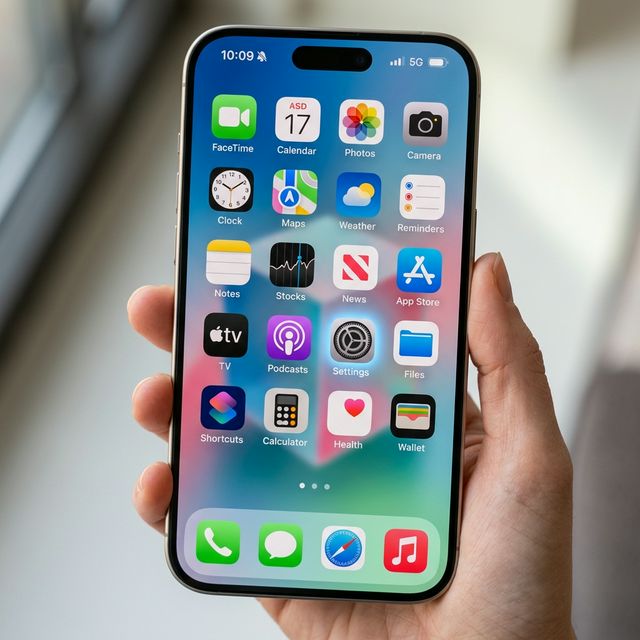
Step 1: Open System Settings
Find the gray Settings icon on your home screen. This is where you edit your signature, not within the Mail app itself.
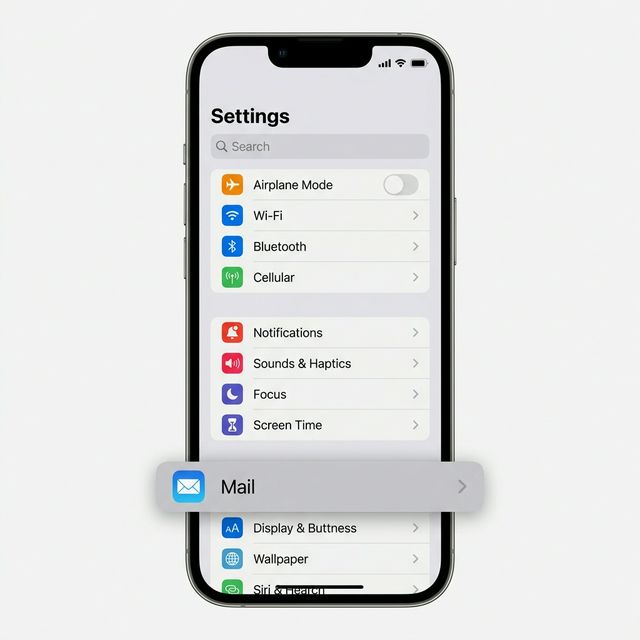
Step 2: Navigate to Mail Settings
Scroll down the list of system apps until you find Mail. Tap it to open the mail configuration menu.
Step 3: Open the Signature Panel
Scroll toward the very bottom of the Mail menu. Tap the option labeled Signature. You will see "Sent from my iPhone" appearing in the preview text.
Step 4: Edit and Replace
Tap the text box and delete the default text. If you have multiple accounts, select "Per Account" to use different footers for work and personal mail. Paste your HTML signature or custom text here.
*Pro Tip: Instead of manually formatting your mobile signature, use InboxSign to create a clean, mobile-friendly version that works instantly.*
How to Create a Professional Mobile Signature
Upgrading your mobile identity is easy when you follow these actionable steps:
- Pick a Goal: Decide if you want a minimalist sign-off or a fully branded footer with links.
- Choose Format: Use a vertical, narrow layout (under 400px) that won't break on small screens.
- Generate: Use the InboxSign generator to get light, table-based HTML optimized for iOS.
- Test: Send a test email to yourself and check it on both desktop and mobile to verify the best email signature size.
Best Practices for Mobile-Friendly Signatures
- Use Tap-Friendly Spacing: Ensure your social icons and links have enough vertical space so they are easy to click with a thumb.
- Keep Width Narrow: Stay under 400px to avoid horizontal scrolling on narrow devices like the iPhone SE.
- Standard Fonts: Stick to Arial or Helvetica for maximum cross-platform compatibility.
- SSL Hosted Images: Always use hosted image URLs to prevent your logo from showing up as an attachment.
- Avoid Mistakes: Review our list of email signature mistakes to ensure your mobile identity is as professional as your desktop one.
Frequently Asked Questions
Can I use the same signature on mobile and desktop?
Yes, but you must ensure your design is responsive. Use our size guidelines to verify that your Apple Mail signature isn't too wide for mobile screens.
Why does my signature look different on iPhone?
The iPhone Mail app uses a basic web view that can strip complex CSS. Using a generator helps avoid these issues by using stable, table-based HTML signature code.
Replace "Sent from my iPhone" with Professional Branding
Don't let your technology choice define your professional brand. Replace Apple’s default message with your own professional identity in minutes using the InboxSign generator. It's the fastest way to create a clean, responsive mobile signature that works perfectly across iPhone, Gmail, and Outlook.